The company logo shown in Sansan headers and other areas can be changed or deleted. This page explains the procedure.
Conditions
Admin privileges are required to use this feature.
Steps
1. In Sansan, click on the user icon in the top right → "Admin settings" → "Company logo settings".
2. Click the "Change" button, select an image, and click the "Save" button.
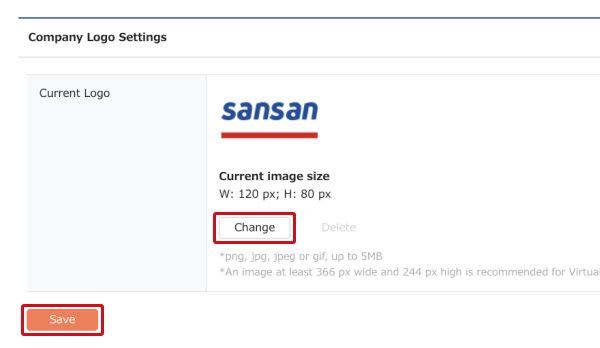
* If the image file is CMYK, the colors will be inverted, so use an image saved in RGB.
* When using the Virtual Card email feature, the recommended image dimensions are 366px wide and 244px high or more.
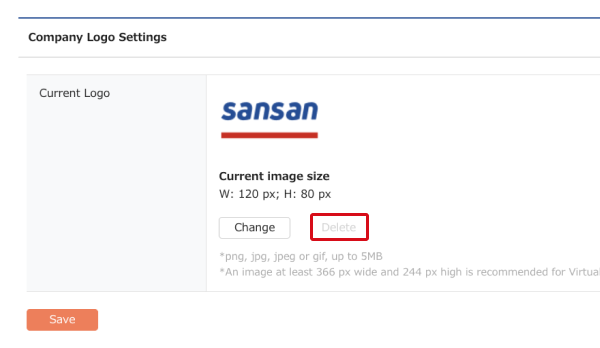
If no company logo has been set
The "Delete" button is deactivated.
Where it appears
The company logo appears in the following locations. Depending on which features are in use, it may also appear for contacts, so be careful when making changes.
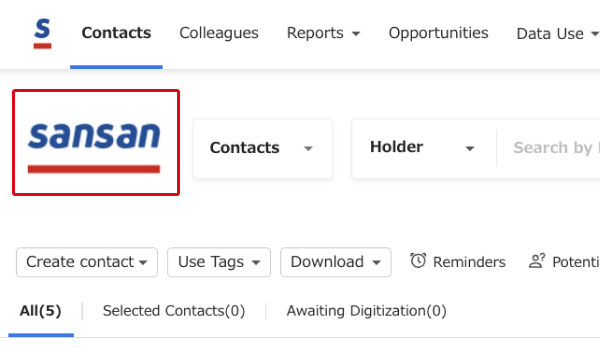
Sansan header
Shown to all users regardless of feature usage. Not shown to contacts.
* The Sansan logo is shown if no company logo has been set.
Zoom, Teams, Meet integration entry form
This appears for contacts when the integration is in use. See here for an example.
* The display area is hidden if no company logo has been set.
Virtual Card email body
This appears for contacts when Virtual Card email is in use. See here for an example.
* Virtual Card email cannot be used if no company logo is set.