An email containing the Virtual Card information of the exchanged contact from your company will be automatically sent to the person you exchanged business cards with. This applies to contacts registered in Sansan through scanning or Virtual Card exchange.
This feature may not be available depending on your contract plan. Please contact your sales representative or the Support Center if you'd like to use this feature.
Contents
- Contacts and criteria for sending
- Contacts not eligible for sending
- Send timing
- Mail contents
- Checking sending history
Contacts and criteria for sending
- Usage settings completed by the admin
- Contact owner has set up a Virtual Card
- Exchange date is within the last 28 days
Contacts for which either A or B below applies are eligible for sending.
A : Contacts scanned with the Sansan scanner, Mobile App, or imported via image file
- Digitized between midnight and 11:59 p.m. the previous day (Japan time)
- Digitized in Japanese
- Digitized address is within Japan
B : Contacts received via Virtual Card exchange or Zoom, Teams, Meet integration
- Received between midnight and 11:59 p.m. the previous day (Japan time)
Contacts not eligible for sending
Contacts registered via the following methods are not eligible for sending:
- Created manually
- Imported by contact import
- Imported from Eight via Eight integration
- Imported using Sansan Open API “Business Image Registration API”
- Imported using Sansan Open API "Business Card Data Registration API"
- Imported by Contact Inbox
- Created by pasting an email signature
- Own contacts imported by Virtual Card registration
- Own contact data created by Smart Meishi Maker or Sansan Meishi Maker
- Virtual Cards created by admins from user profiles
Send timing
Contacts scanned with the Sansan scanner, Mobile App, or imported via image file will be sent the day after digitization is complete. Contacts received via Virtual Card exchange will be sent the day after receipt. The scheduled sending time is 7–8 a.m. (Japan time) for all cases. These timings cannot be changed.
Changes to sending status or contact owner/holder made during delivery may not be reflected. Be sure to make changes well before the scheduled sending time above.
※ Go here for details on how to manage sending.
Mail contents
The following contents will be sent.
※ Admins can check via preview on the settings page (Japanese only).
Sample contents
Subject
Sending a Virtual Card of #contact owner name# from △△ Inc.
To
Email address of contact who exchanged cards
Sender name
Company name
Sender email address
Email address on the contact owner’s Virtual Card
Bcc
Email address on the contact owner’s Virtual Card
Body
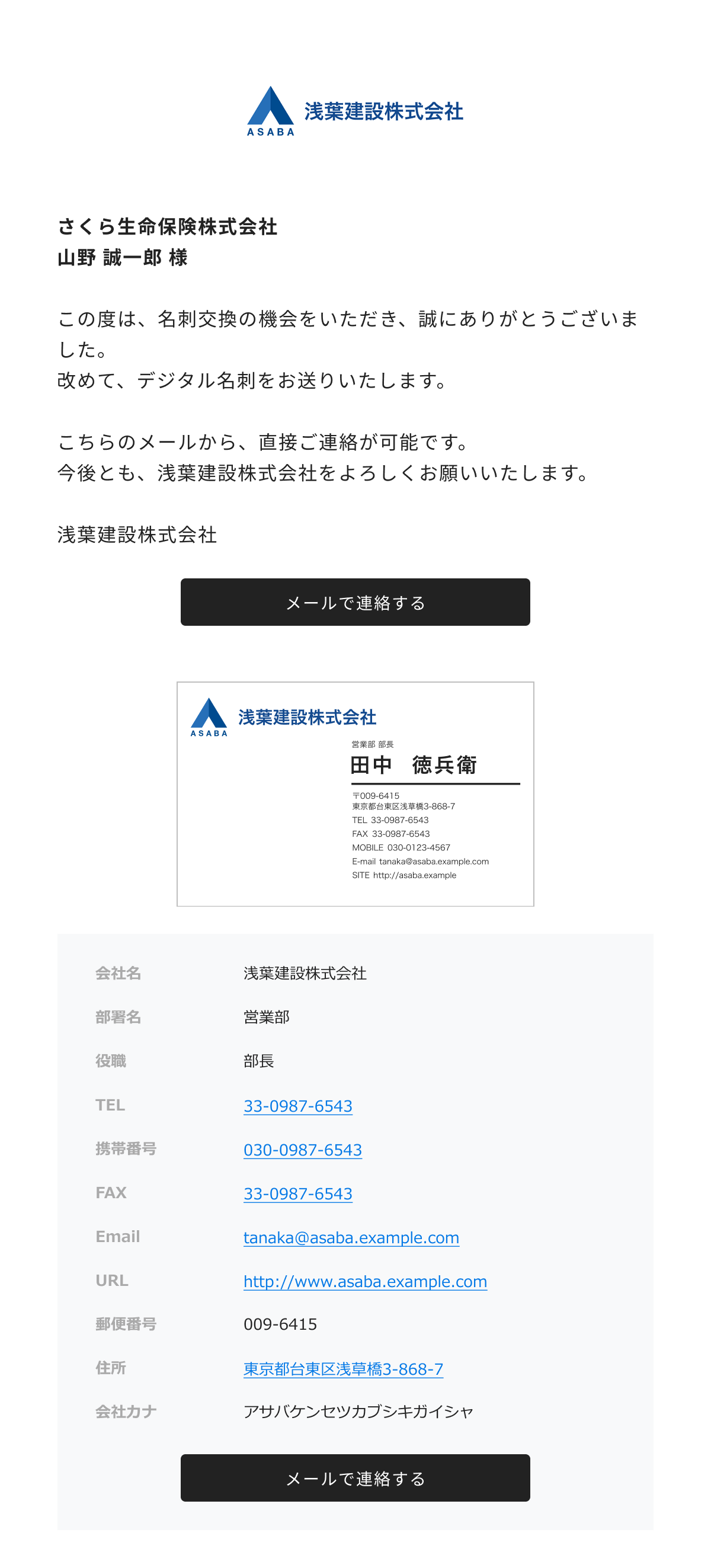
Important points
- The email text cannot be changed.
- Only available in Japanese.
Supplementary
The email body can be modified only within the scope of sending Virtual Card information.
Checking sending history
Since Bcc is set to the email address on the contact owner’s Virtual Card, it can be checked from an inbox just like regular emails.