You can use two-factor authentication for logging into Sansan to strengthen the account security. Even if the password to the account has been leaked or stolen, unauthorized entrance by third parties can be prevented with two-factor authentication.
If you enable two-factor authentication, when you log in to the following services, in addition to your ID and password, you will be asked for your authentication code.
- Sansan Web App (when using from web browser)
- Sansan Smartphone App (iOS/Android)
This page explains two-factor authentication (2FA) using email.
For 2FA using an authenticator app, see the page below.
・ Log in using two-factor authentication (via an authenticator app)
Contents
- Usage requirements
- How to do the settings
- Logging in using two-factor authentication
- For system administrators: Force disable of two-factor authentication
- Troubleshooting
Usage requirements
- An authentication code will be sent by email. You must be able to receive email at your login email (or secondary email).
- As a rule, initial setup can only be done from the Sansan Web App (accessed via a browser). You can also access the Web App from a smartphone, but please note that usability is significantly reduced.
How to do the settings
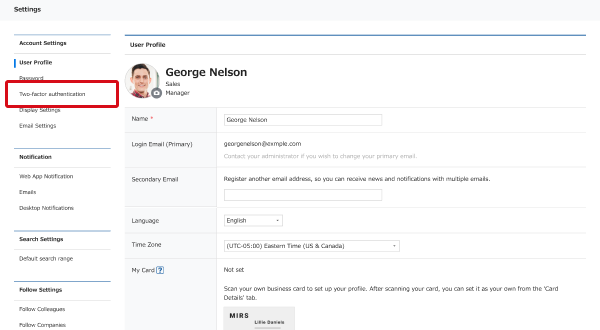
1. Click "Settings", then "Two-factor authentication".
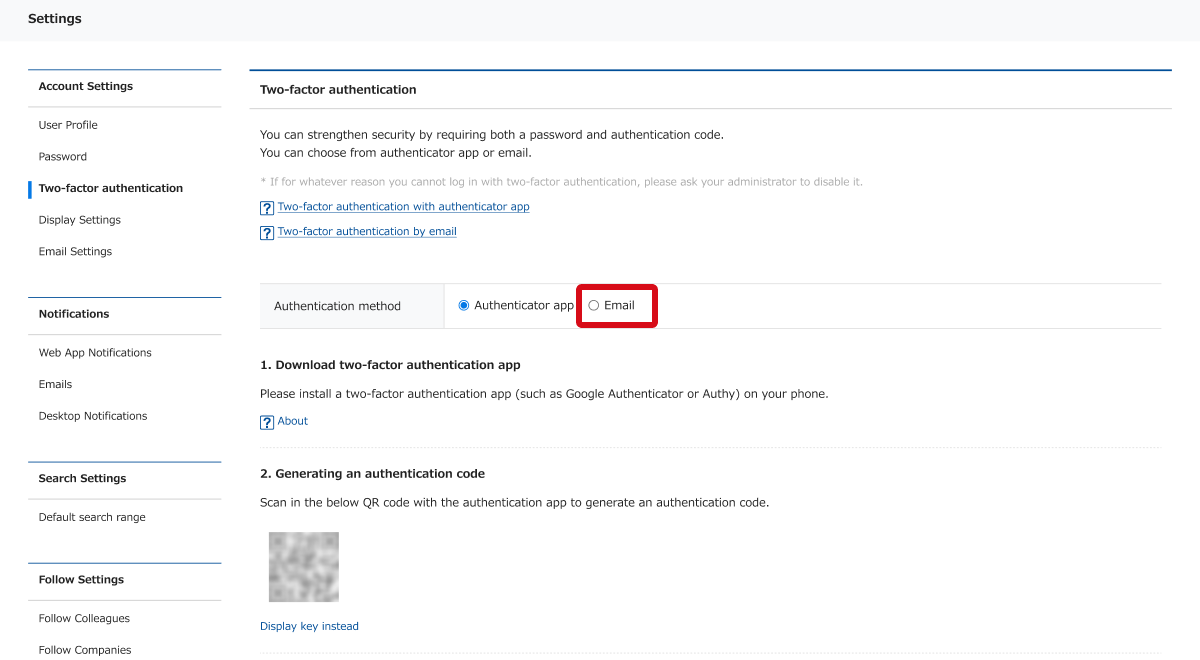
2. Under "Authentication method", click "Email".
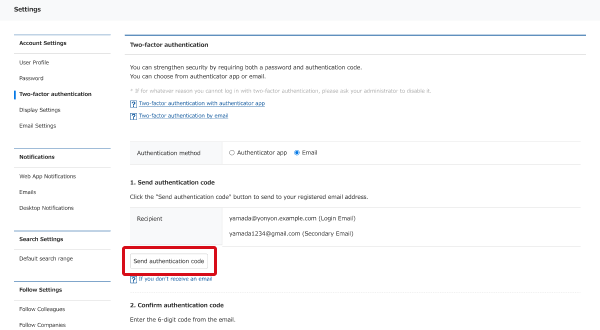
3. Send an authentication code.
When you click the "Send authentication code" button, an authentication code will be sent by email. The email will be sent to your login email and, if set up, your secondary email.
4. Confirm the authentication code.
The email sent to your login email contains a 6-digit authentication code.
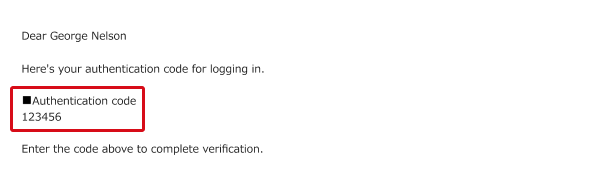
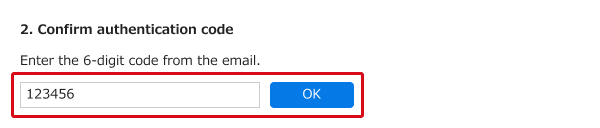
Return to the Sansan settings page, enter this code in the “2. Confirm authentication code” field, and click the "OK" button.
Please note that the authentication code expires 10 minutes after it is issued.
The settings for two-factor authentication are complete.
Logging in using two-factor authentication
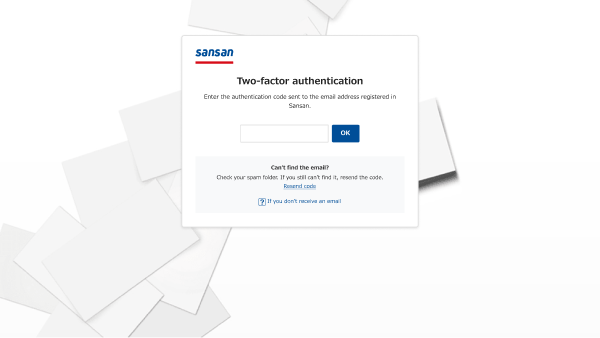
When two-factor authentication is enabled, after ID and password authentication in Sansan, you'll be prompted to enter an authentication code.
The code will be sent to your login email (and, if set up, your secondary email). Enter the authentication code shown in the received email.
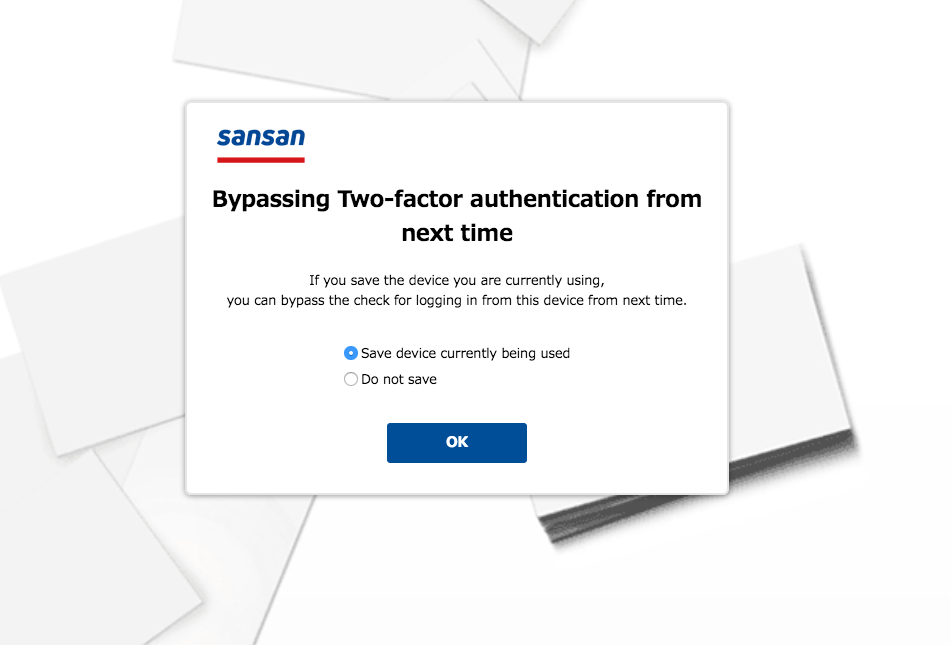
In the Web App, saving information about the environment in use allows authentication code entry to be bypassed upon the next login (the account remains securely protected).
For system administrators: Force disable of two-factor authentication.
If a user cannot obtain the authentication code for any reason, such as not receiving the email containing the authentication code, the Sansan system administrator can disable two-factor authentication for that user.
Force disabling of two-factor authentication can be done from first going to "Security settings" and then to "Two-factor authentication" from the administrator settings.
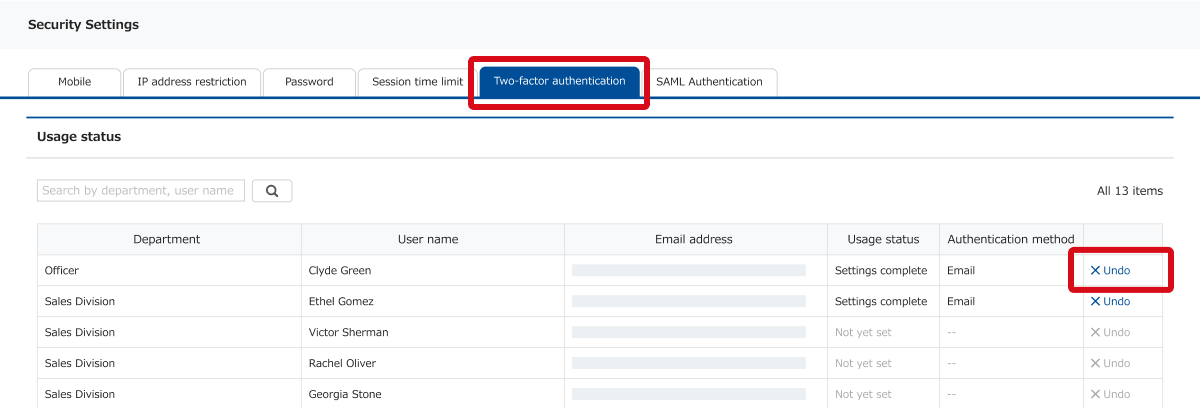
If two-factor authentication is made to be required, the button will say "Reset" instead of "Undo".
Please be aware that if an administrator forcibly disables the two-factor authentication of a user, the two-factor authentication for this user will be disabled until the user redoes the authentication settings.
Troubleshooting
Q: What if I didn't receive the email containing the authentication code?
A: The email is sent to your Sansan login email (and, if set up, your secondary email). The following are possible reasons for not receiving the email.
- It was sorted into the spam folder.
Check your email service's spam folder. - Receiving is blocked.
Allow emails from “@sansan.com” and re-send the authentication code. - There's a temporary issue with the mail server or network.
Wait a little while and re-send the authentication code.
If the issue is still not resolved, ask your system administrator to disable two-factor authentication, then log in. You can also try changing the email address used to receive the authentication code. Ask your system administrator to change your login email or secondary email (non-admin users can also change the secondary email).
Q: What should I do if I entered the authentication code, but I cannot proceed because I get the error “Authentication failed. Please confirm the authentication code and re-enter it.”?
A: The following are possible reasons.
- The authentication code was entered incorrectly.
- The authentication code expired (10 minutes after issuing).
Please check the following in order.
- Confirm that the authentication code is entered correctly.
- Click "Send authentication code" or "Resend code", then enter the code shown in the email.
Q: What should I do if, after entering the authentication code, I get the error “Use is temporarily restricted because the authentication code was incorrectly entered multiple times. Please try again later.”?
A: This error message is shown when the authentication code is entered incorrectly more than a certain number of times. Wait a little while, then click the "Resend code" button, then try authenticating again using the code received by email.
Q: What if I checked the box to save the currently used device but I'm asked to enter the code every time?
A: You'll be asked to re-enter the code in the following cases:
- You've deleted your cache, cookies, history, etc. If your security is set to delete cookies when you close your browser, you’ll be asked each time.
- You're logging in with an incognito browser.
- You're logging in with a different browser.
Q: Why am I suddenly being asked to do two-factor authentication?
A: Your company may have made this mandatory. For details, see, "Making two-factor authentication mandatory (security settings)".
* iPhone is a trademark of Apple Inc., registered in the U.S. and other countries and regions.
* IOS is a trademark or registered trademark of Cisco in the U.S. and other countries and is used under license.
* Android is a trademark of Google LLC.