This guide explains how to update the Sansan scanner (tablet PC) to Windows 11 version 24H2 and how to configure the settings after the update.
Contents
Notes
- The update can take a few hours, so please plan accordingly. Please do any urgent scanning of cards beforehand.
Pre-check
Checking the scanner app ID
First, confirm the ID shown in the "[Important] Please update your Sansan Scanner" email.
1. In the Scanner App menu, tap "Menu" and tap "Settings".


2. Confirm that the ID on the Scanner App screen matches the one listed in the email. If it does, continue on to the steps below to update.

Checking the scanner app version
1. Tap "Menu" > "Version Information" in the Scanner App and confirm that the version is 3.1.2201.2400 or higher.

2. If the version is below 3.1.2201.2400, the Scanner App may not start properly after upgrading.
Start the browser, click "Download" and tap "Open File" in the upper right.
If the download screen (below) doesn't appear, enter "https://scan.sansan.com/ScannerApp/publish.html” (without the quotes) directly into the address bar.

Update Steps
1. Shut down the Scanner App: [Power -> Close App (Exit Application)]
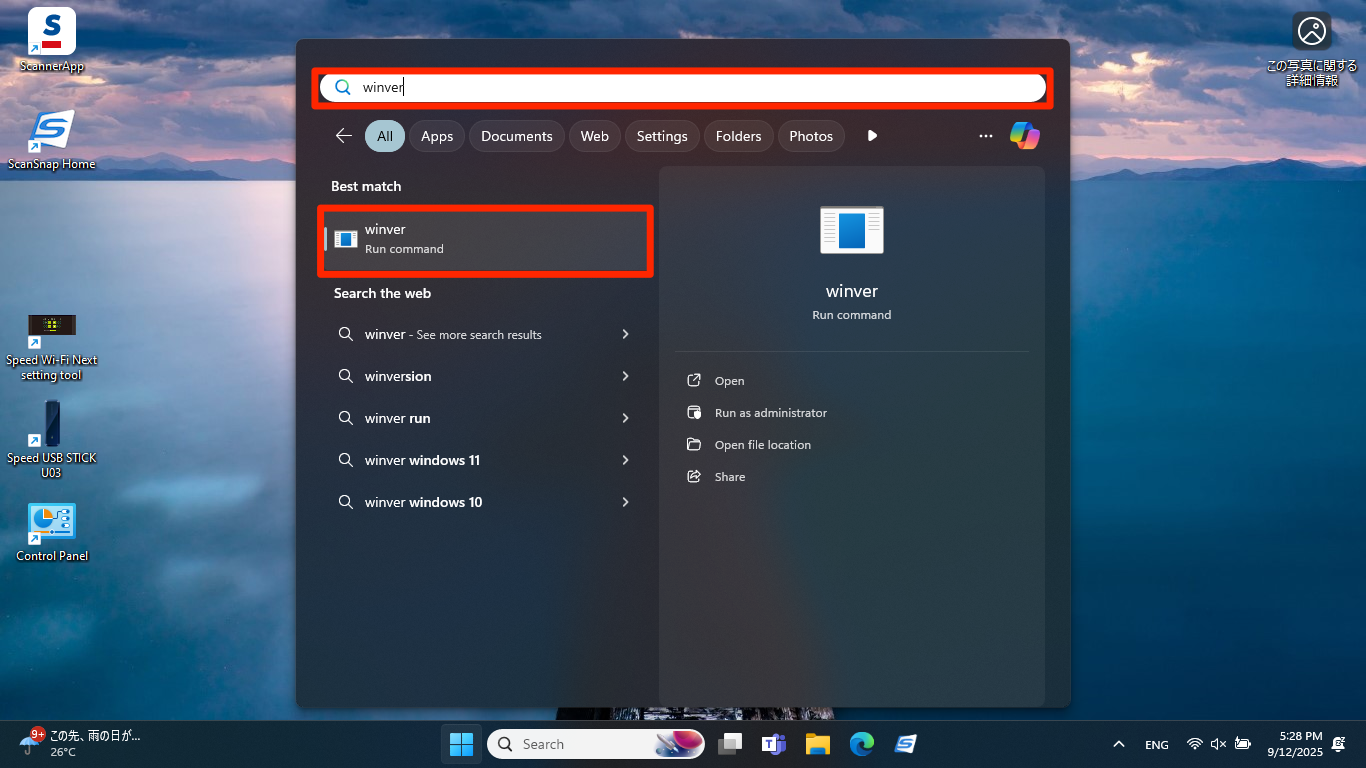
2. When the desktop appears, type "winver" in the taskbar search, then tap "Run command".
(You can also check by long-pressing the Windows icon to open the right-click menu > "Settings" > "System" > "About".)
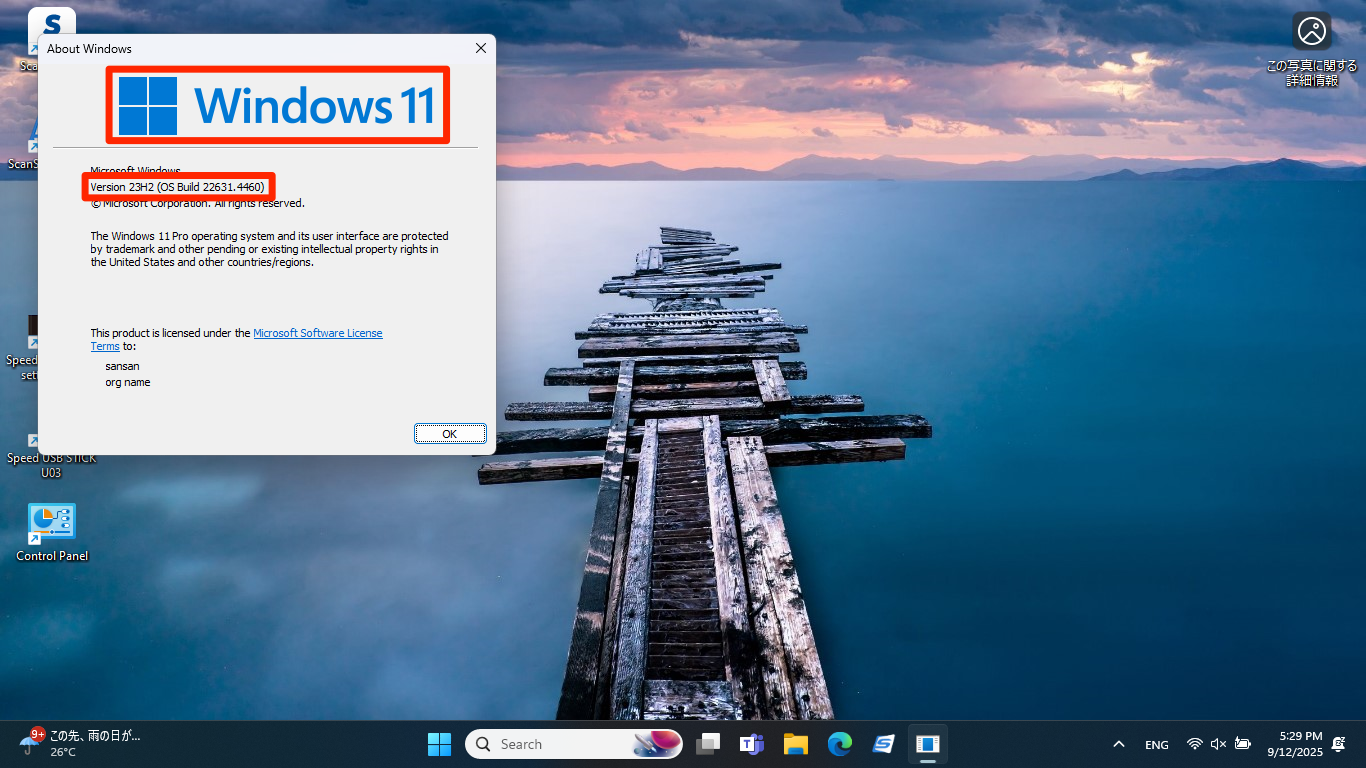
If it shows "Windows 11 version 24H2", no action is required. If you’re using an older version of Windows 11, such as "Windows 11 version 23H2", follow the steps below.
After checking the version, close the window with the × button.
Example: Windows 11 23H2
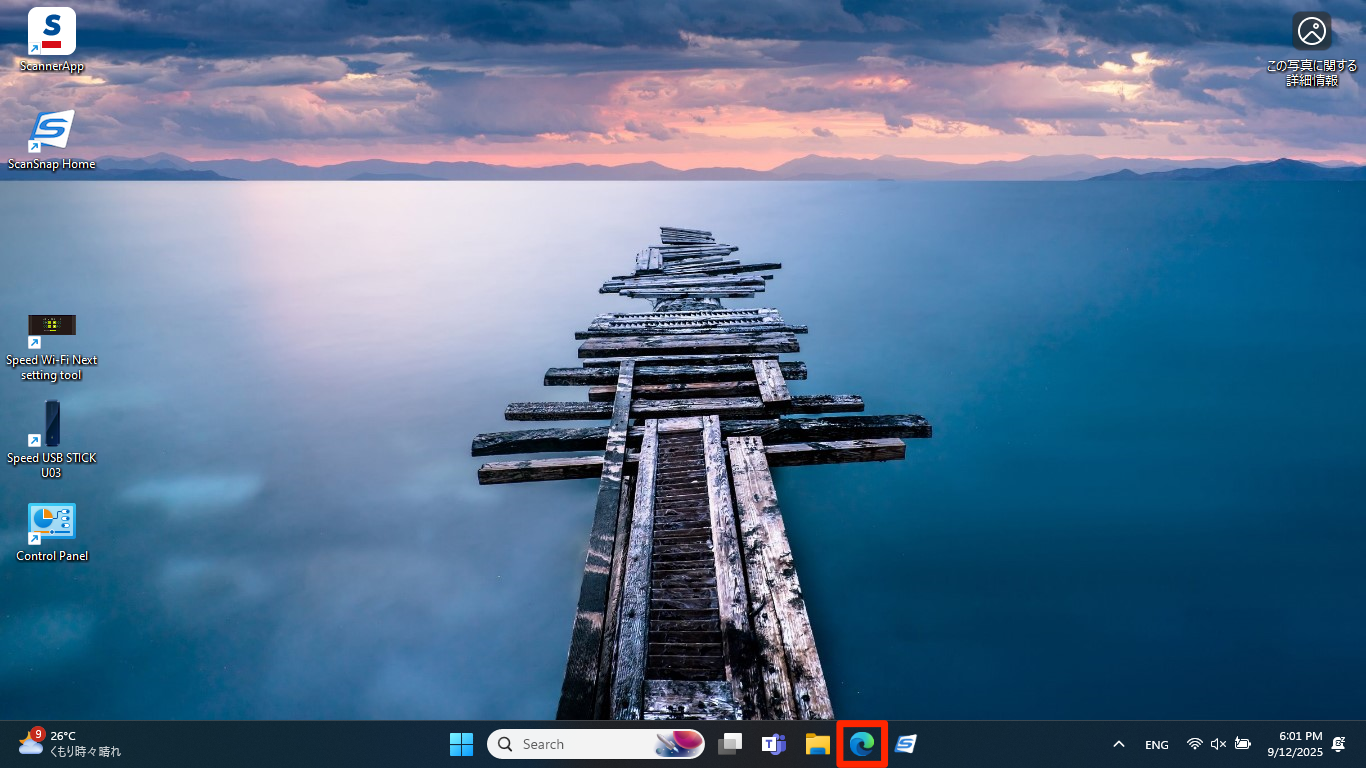
3. Tap the browser icon on the taskbar.
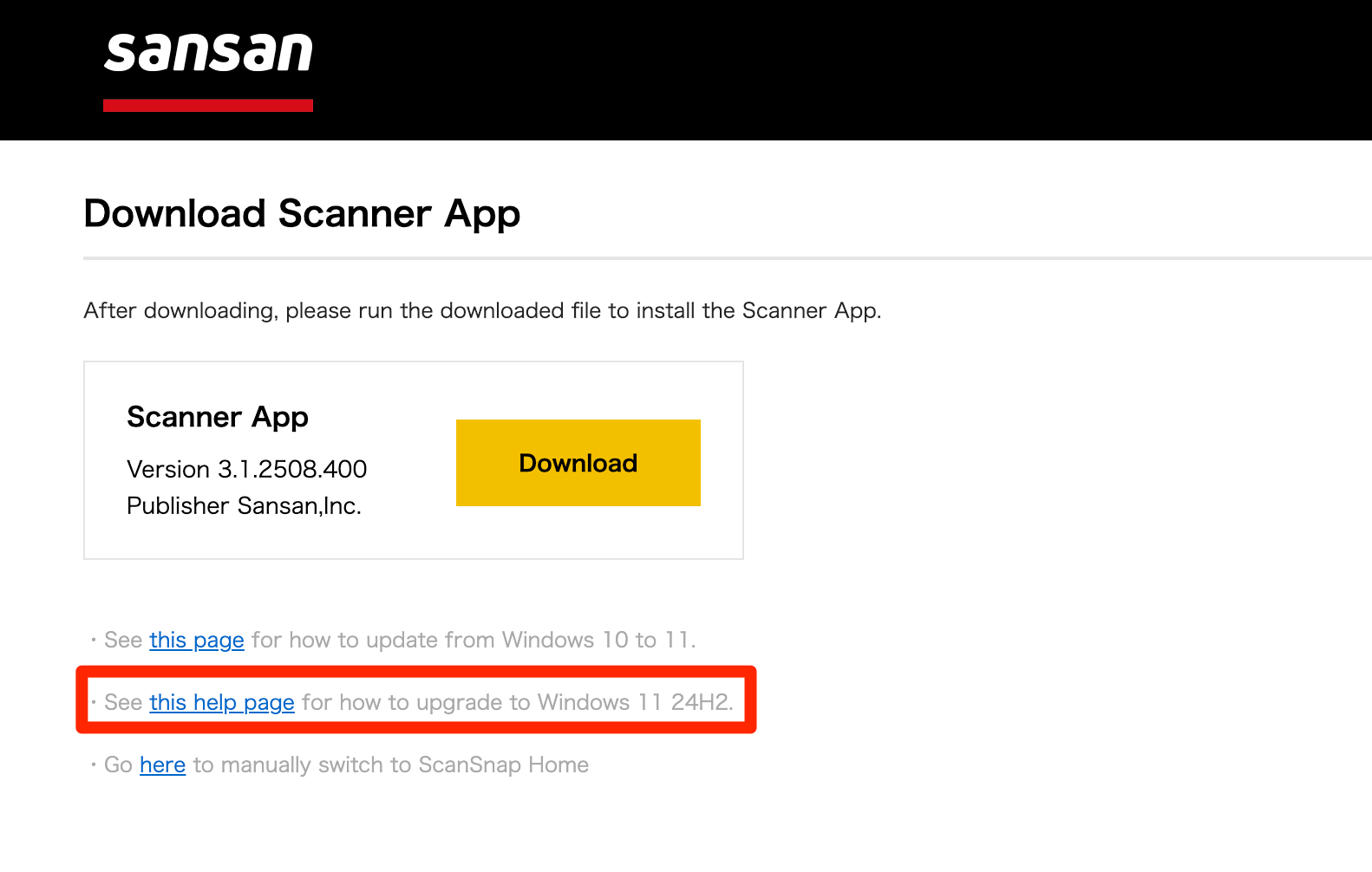
4.Download Windows11InstallationAssistant.zip here
*On the tablet PC, a link to this help page is available on the browser’s home screen when you launch the browser. Viewing this help page directly on the tablet PC makes the download easier.
If the link doesn’t appear, open the browser on the tablet PC and manually enter "https://jp-help.sansan.com/hc/en-us/articles/49957271383833" to go to this help page.
*Scanner app download is not required for this procedure, so do not tap "Download" on the screen. Use the link: ”See this help page for how to upgrade to Windows 11 24H2."
5. Tap "Open file", then tap "Extract all" in the opened file.
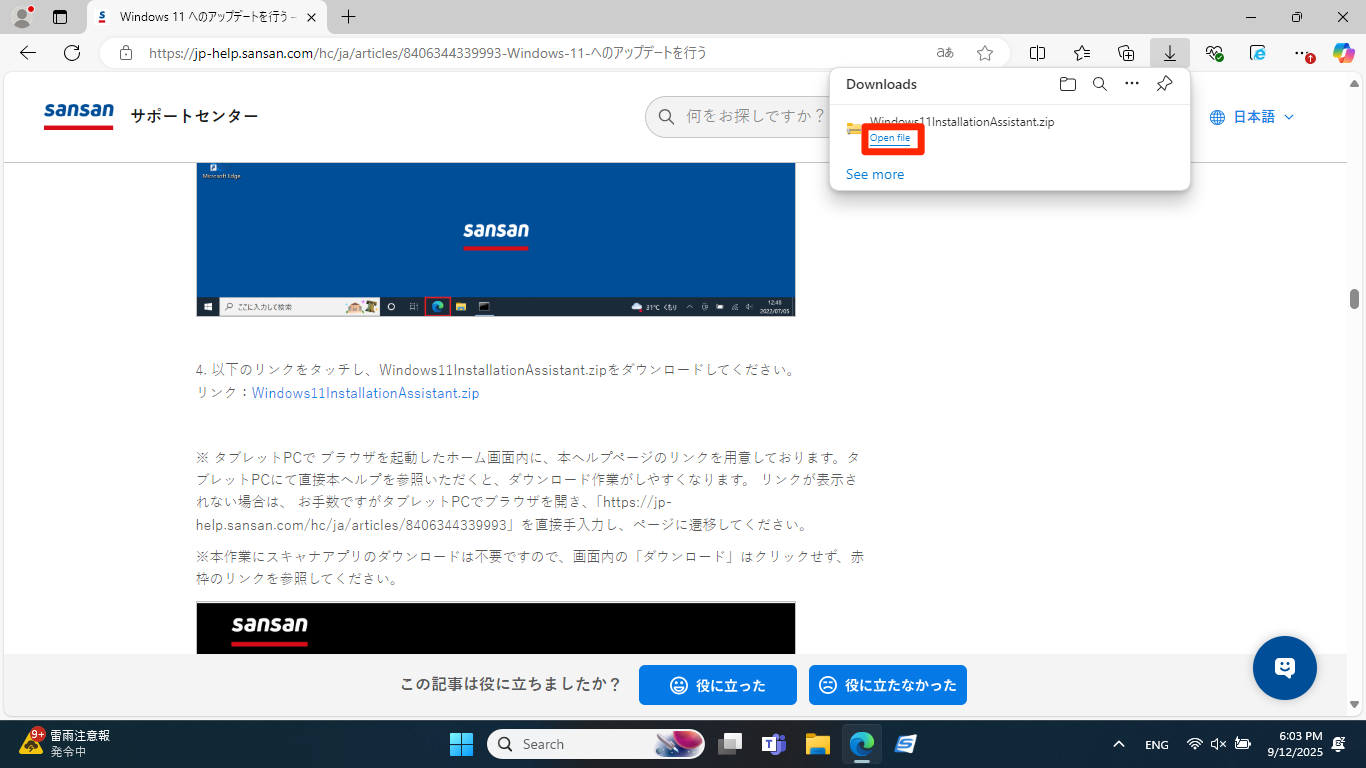
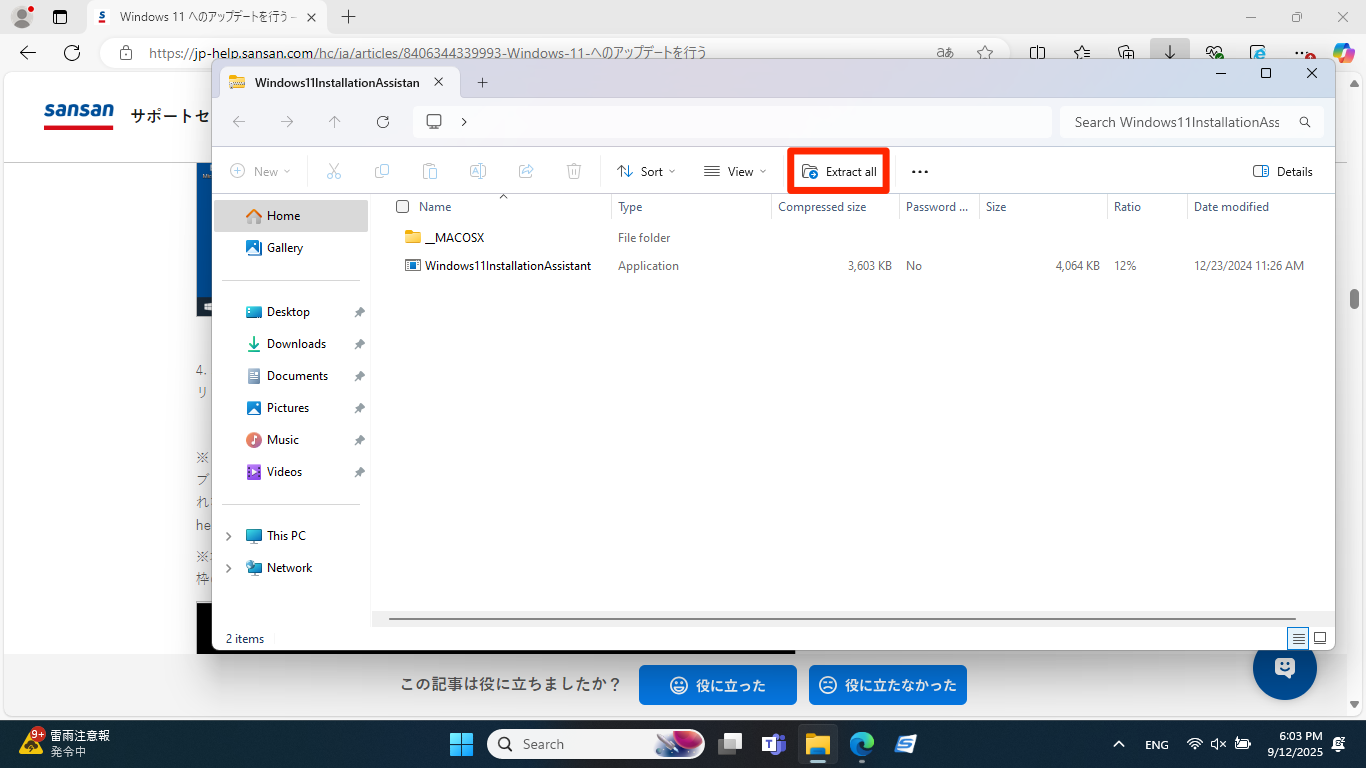
6. Click [Open file] and click [Extract All].
On the [Extract Compressed (Zipped) Folders] screen, choose [Extract] and click.
Windows11InstallationAssistant.exe in the patch folder to select it, long press on it, and when the right-click menu is displayed, choose [Run as administrator].
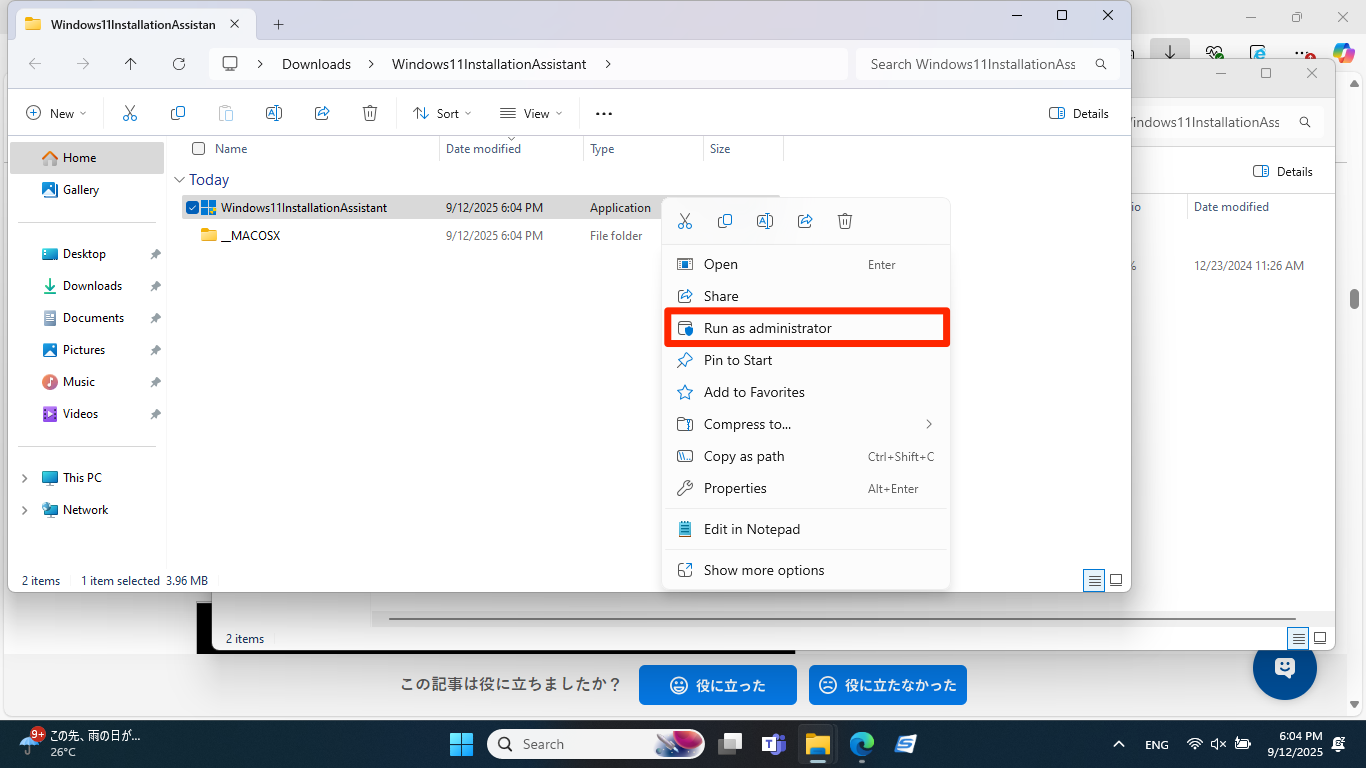
7. If he message [User Account Control Do you want to allow this app to make changes to your device?] displays, choose [Yes] and wait for the next message.
8. Windows 11 Install Assistant will begin. When [Install Windows 11] displays, choose the [Accept and Install] button.
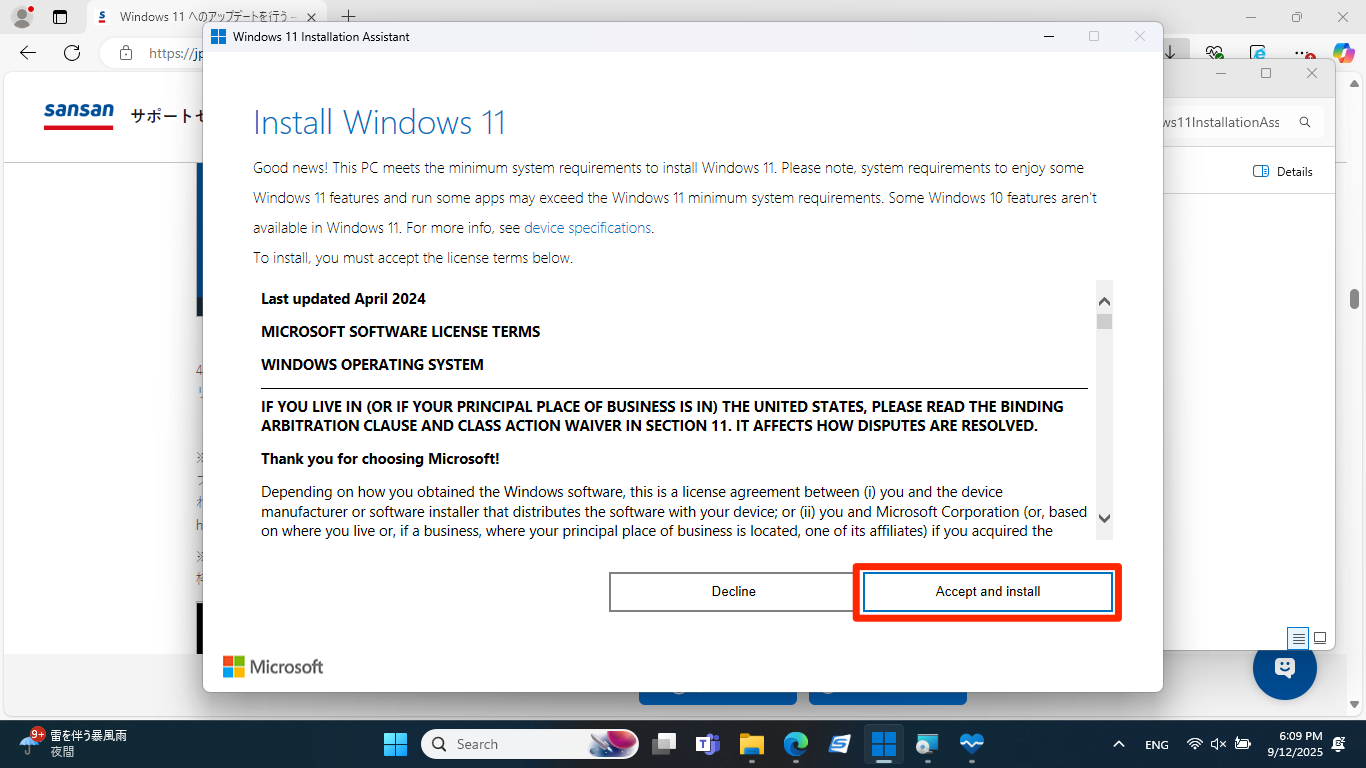
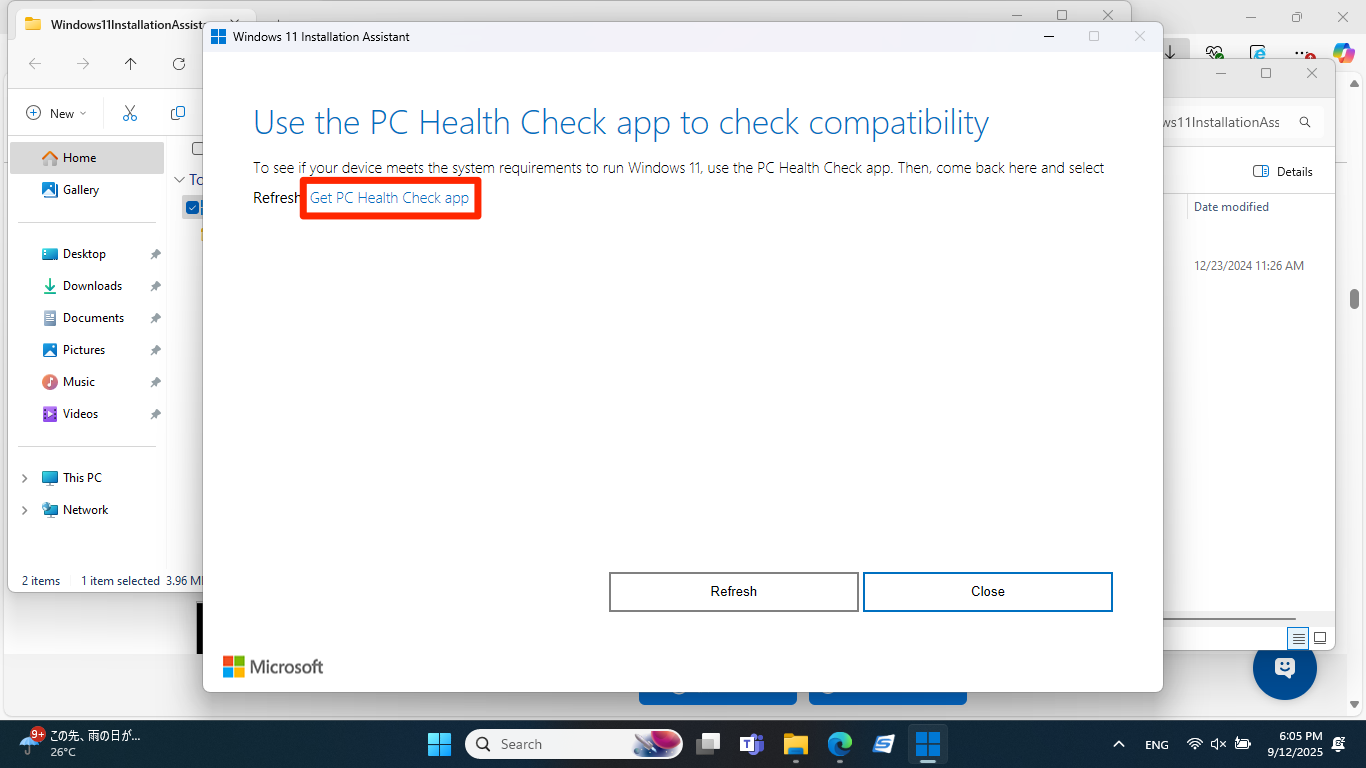
If you see “Use the PC Health Check app to check compatibility” as shown below, follow steps 1) through 8).
If it doesn't appear, go to step 9.
1) Tap "Get PC Health Check app."
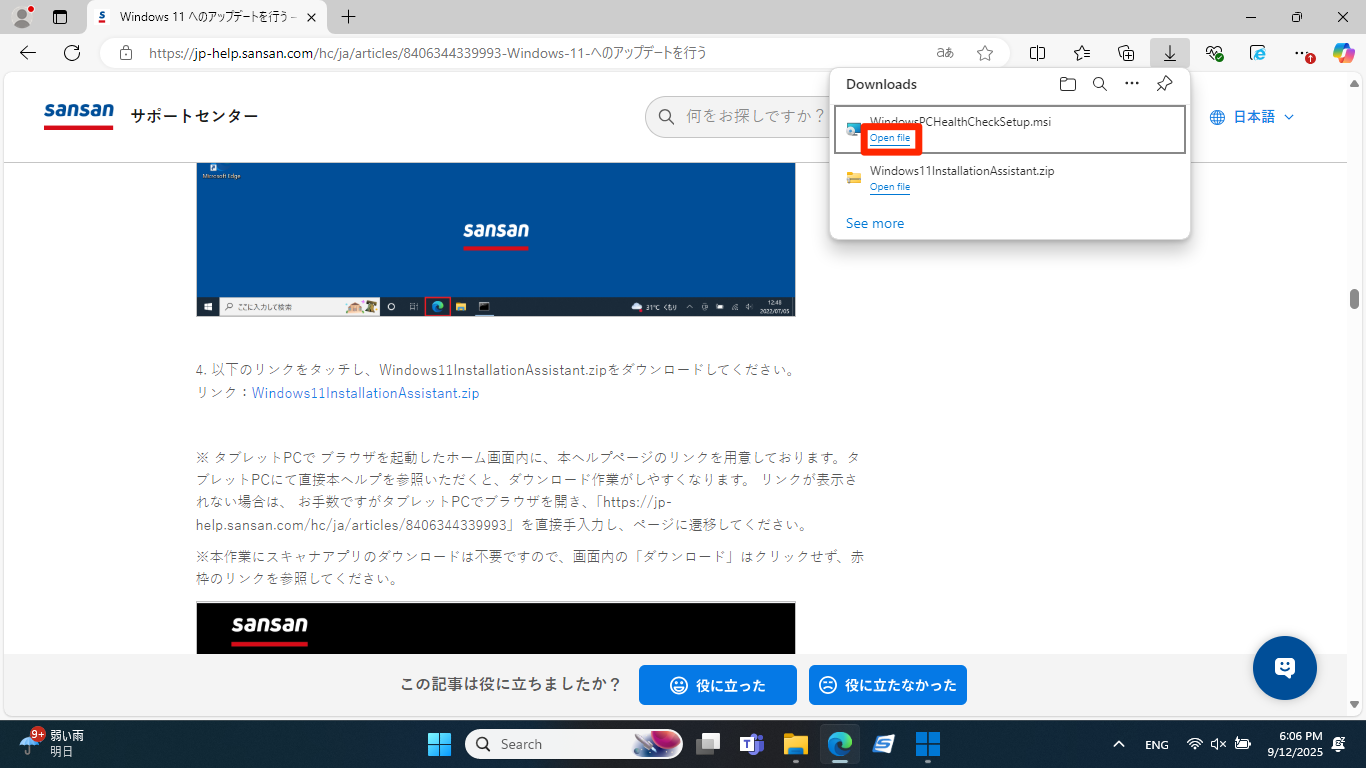
2) After the download completes, tap "Open file."
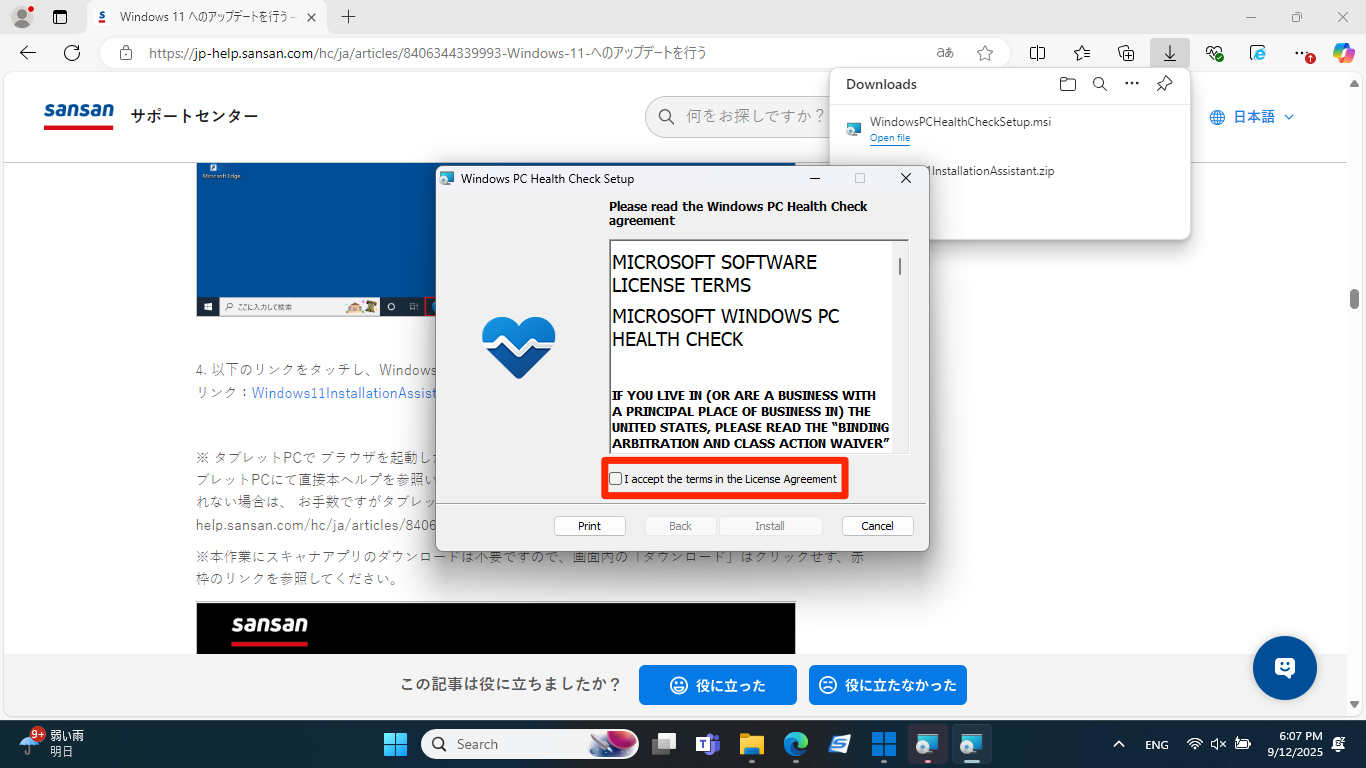
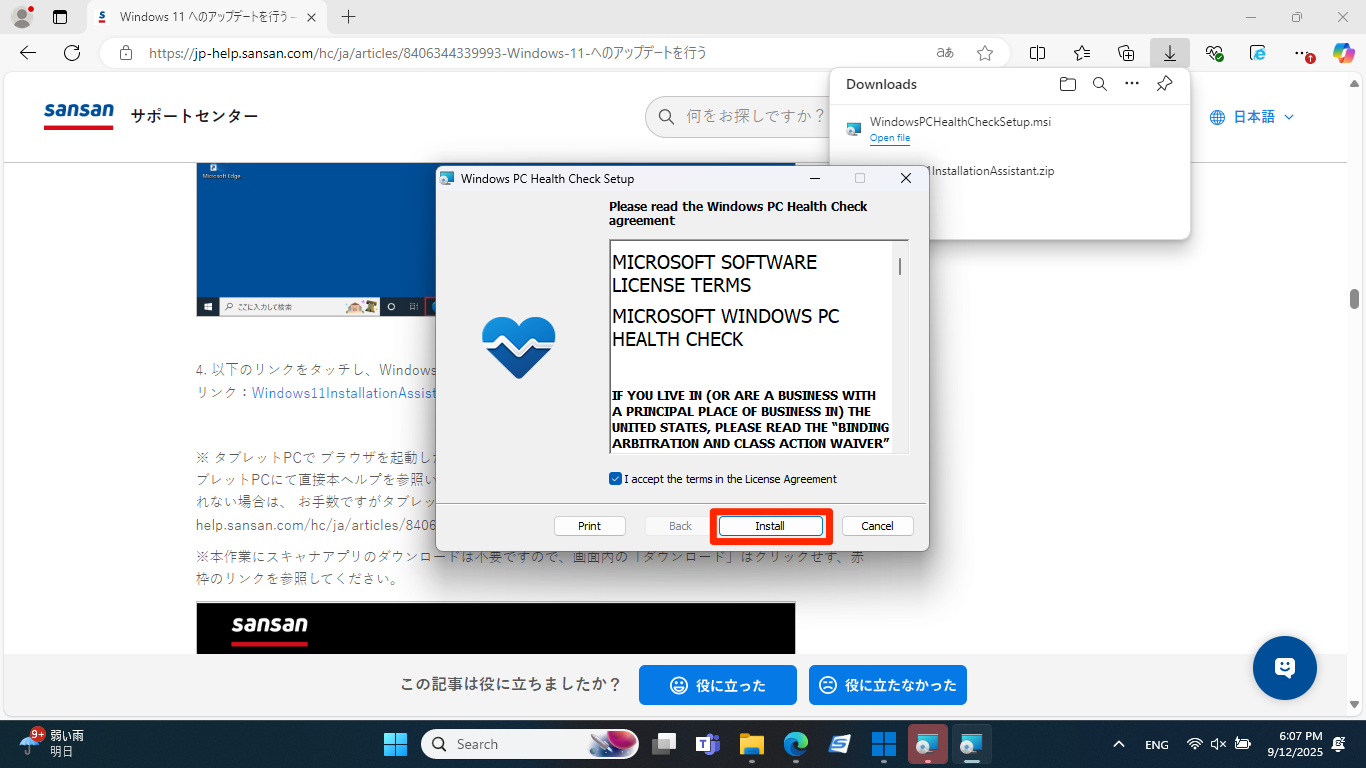
3) Set up the PC Health Check app. Check "I accept the terms in the License Agreement," then tap "Install."
4) Check "Open Windows PC Health Check," then tap "Finish."
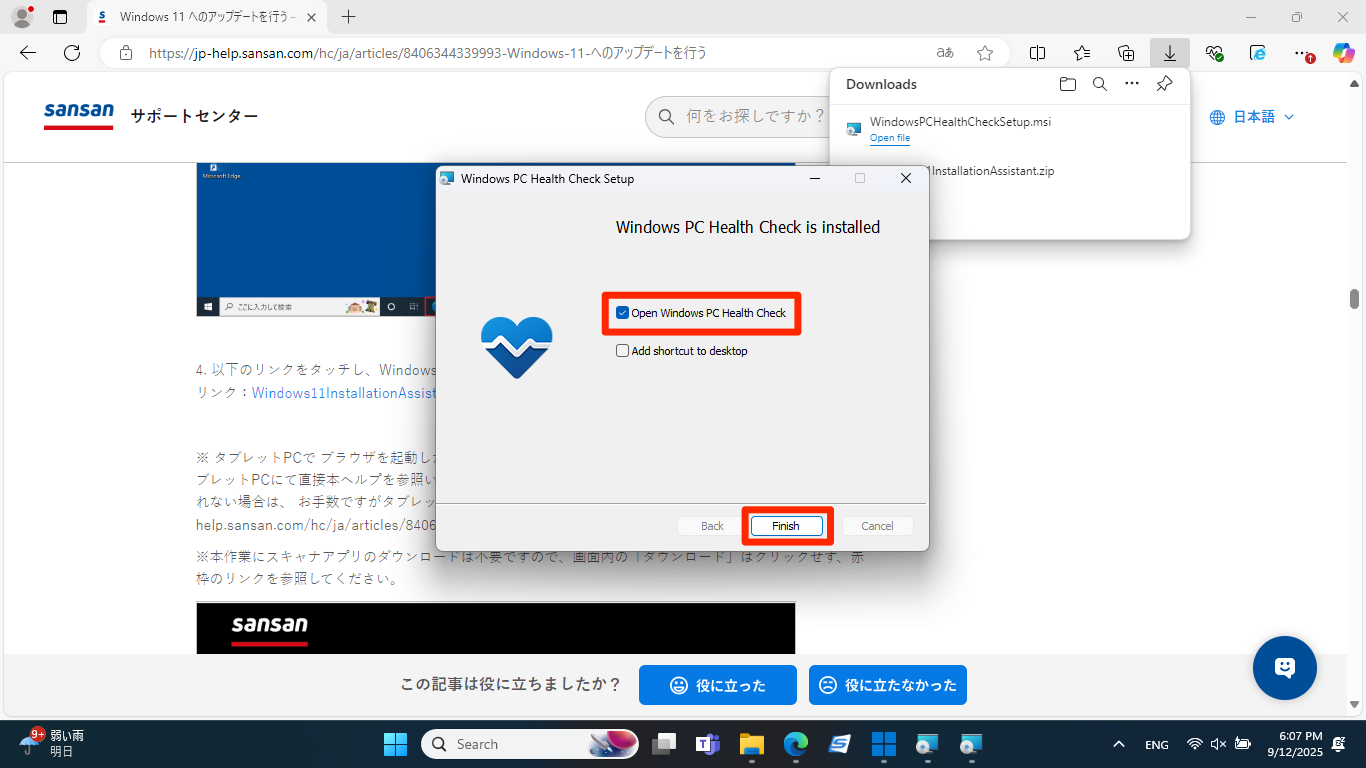
5) The PC Health Check app launches. Tap "Check now."
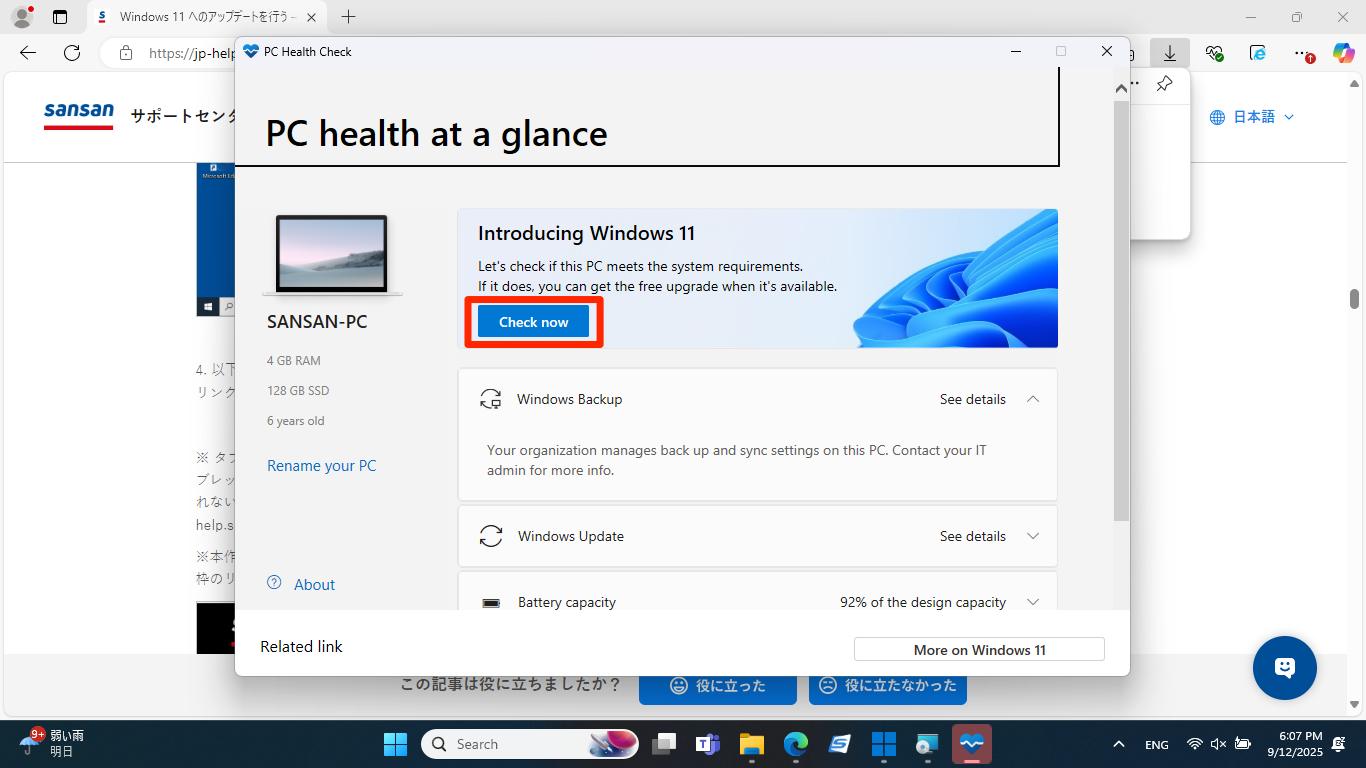
6) When "Your organization manages updates on this PC" appears, the check is complete. Close the window with the × button.
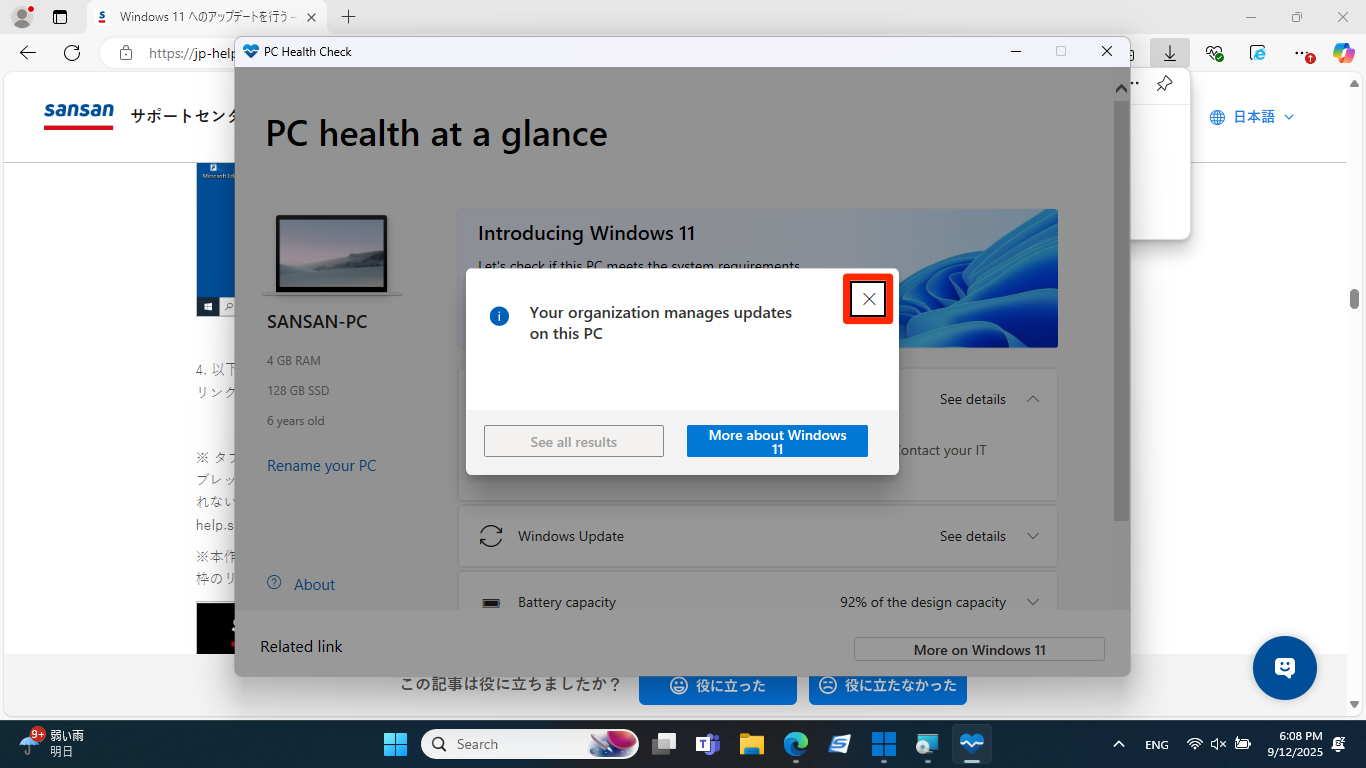
7) Tap the icon in the red box to return to Windows 11 Installation Assistant. If you closed Windows 11 Installation Assistant, tap Windows11InstallationAssistant.exe again to select it, then long-press it to open the right-click menu and tap "Run as administrator".
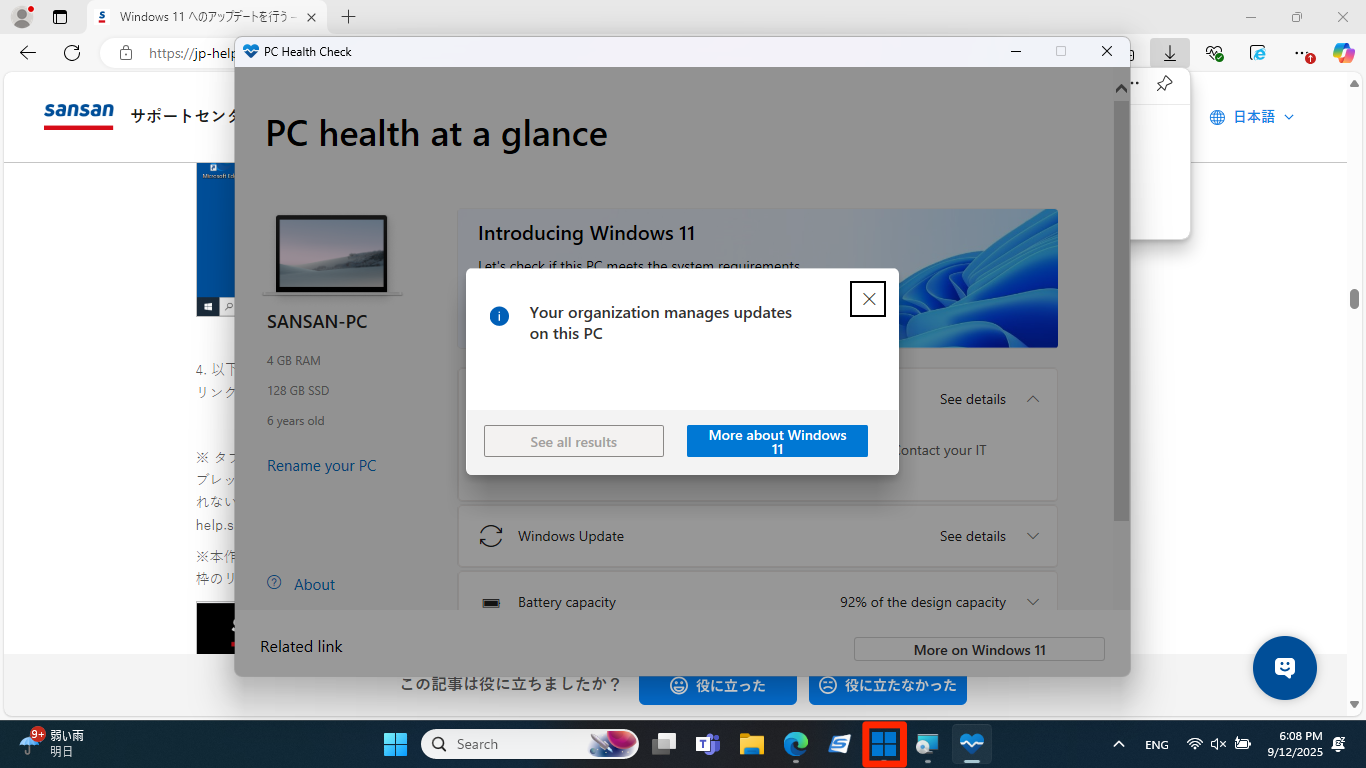
8) If “Use the PC Health Check app to check compatibility” appears again, press the “Refresh” button, and when the “Install Windows 11” screen appears, tap “Accept and Install,” then wait.
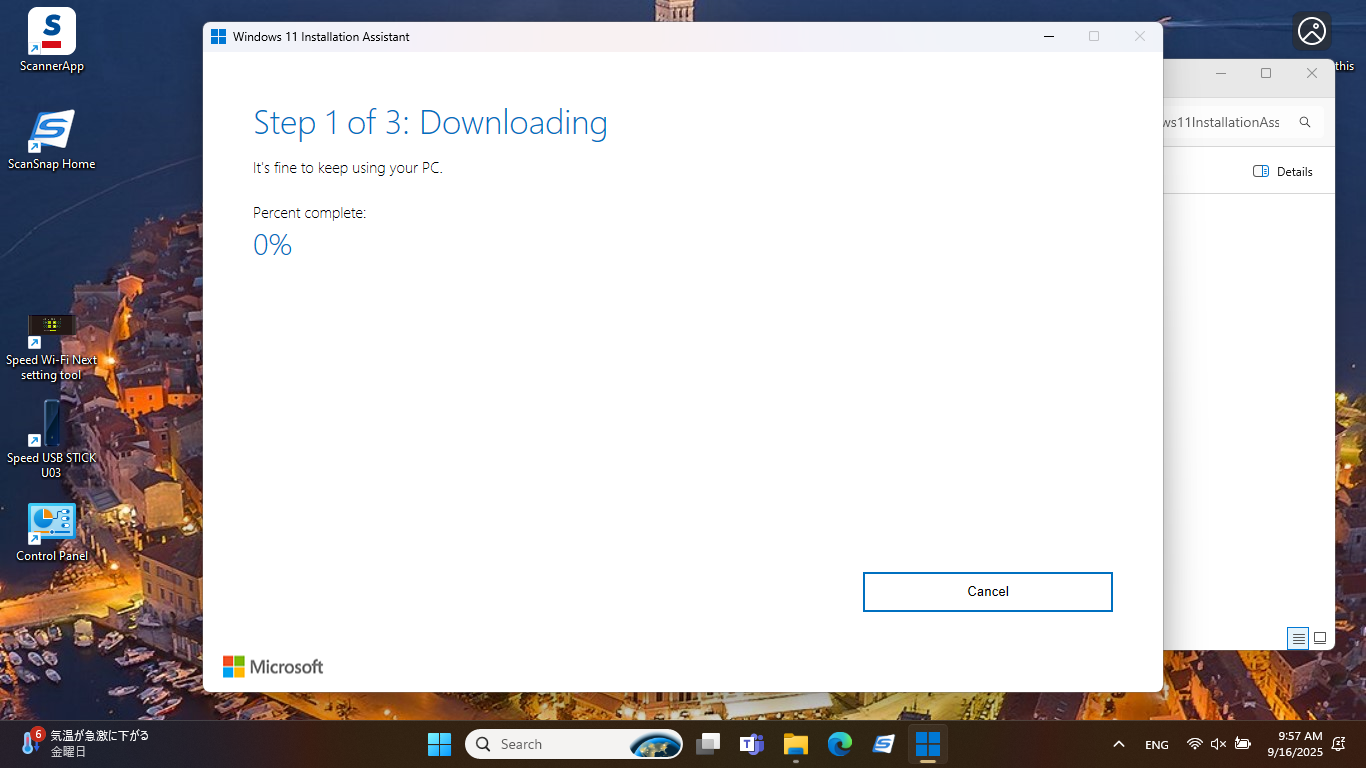
9. You’ll see [Step 1 of 3: Downloading] and the update will begin.
* Please be aware the full update may take several hours.
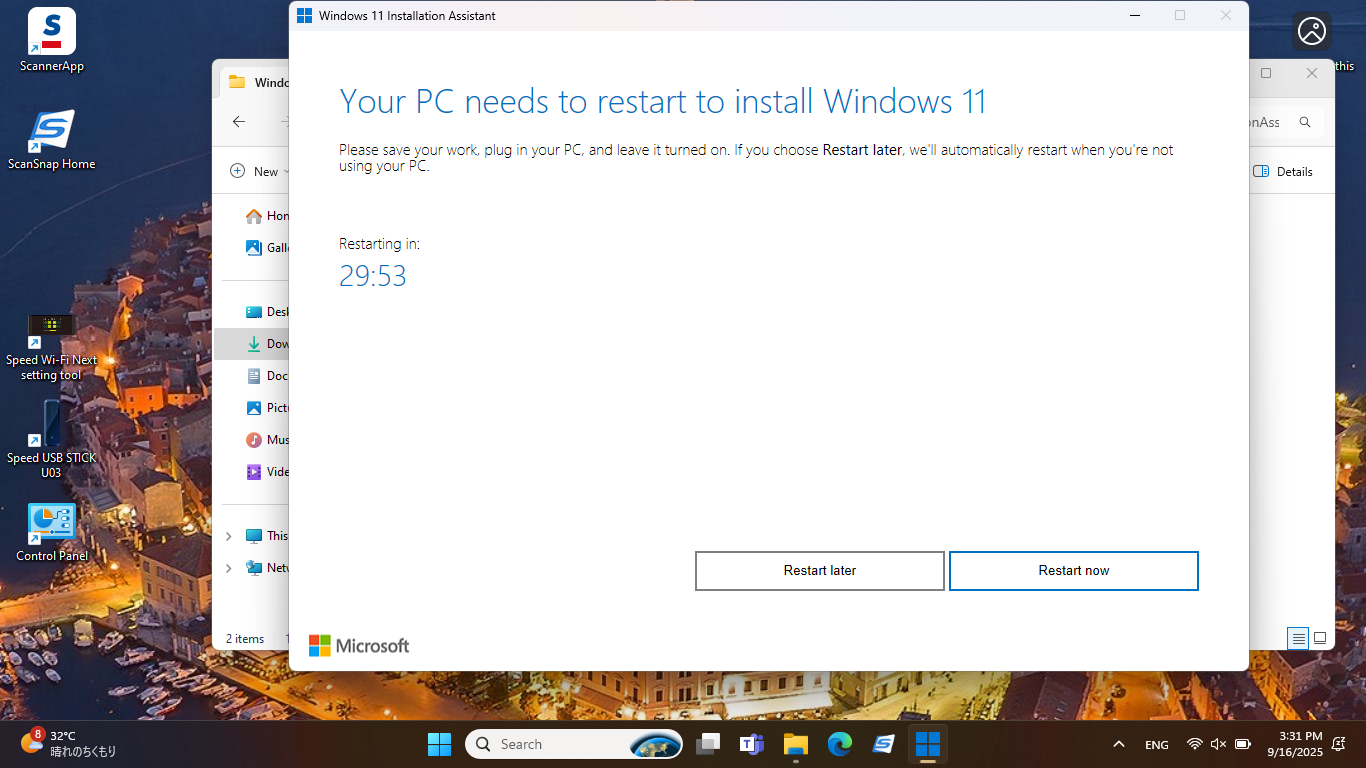
10. When the update is complete, [Your PC needs to restart to install Windows11] will display. Restart the device or it will automatically do so in 30 minutes.
11. If "Sign in with Microsoft" is displayed, click Cancel
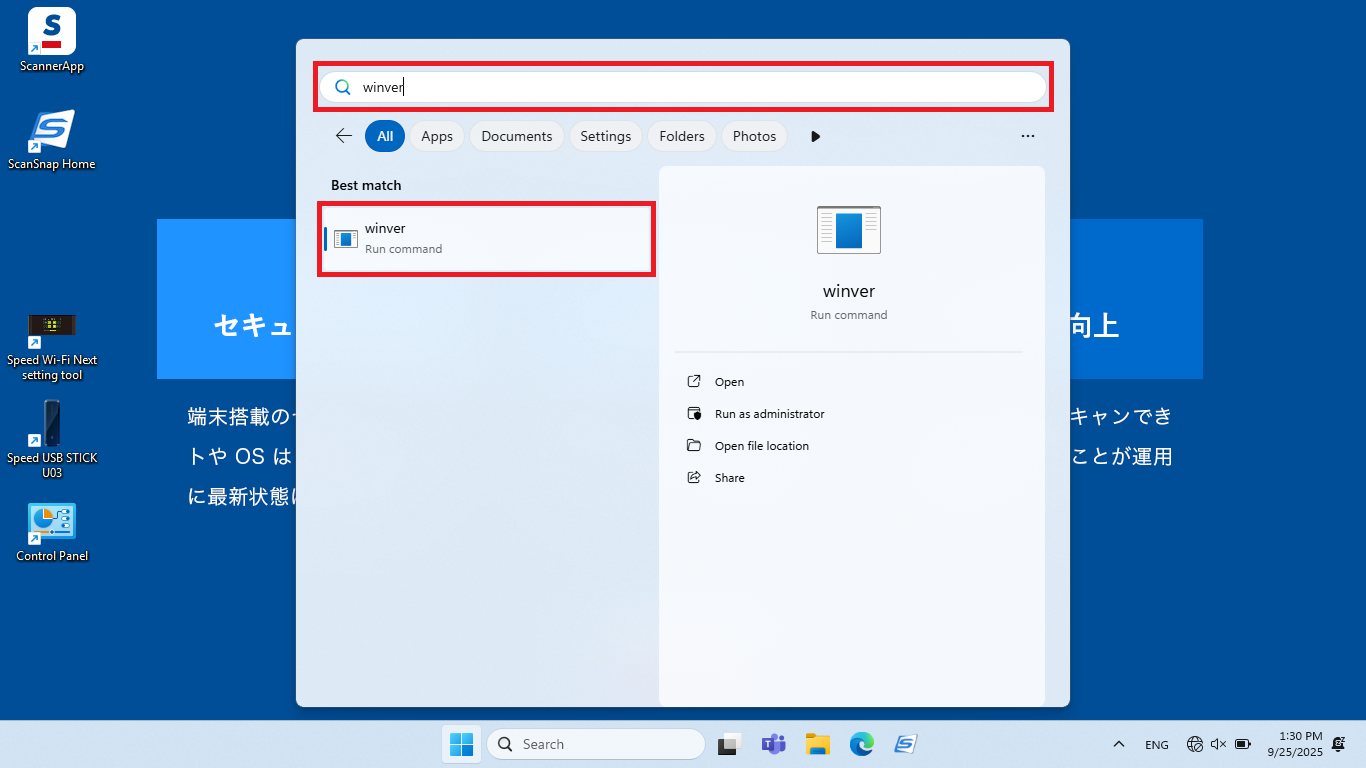
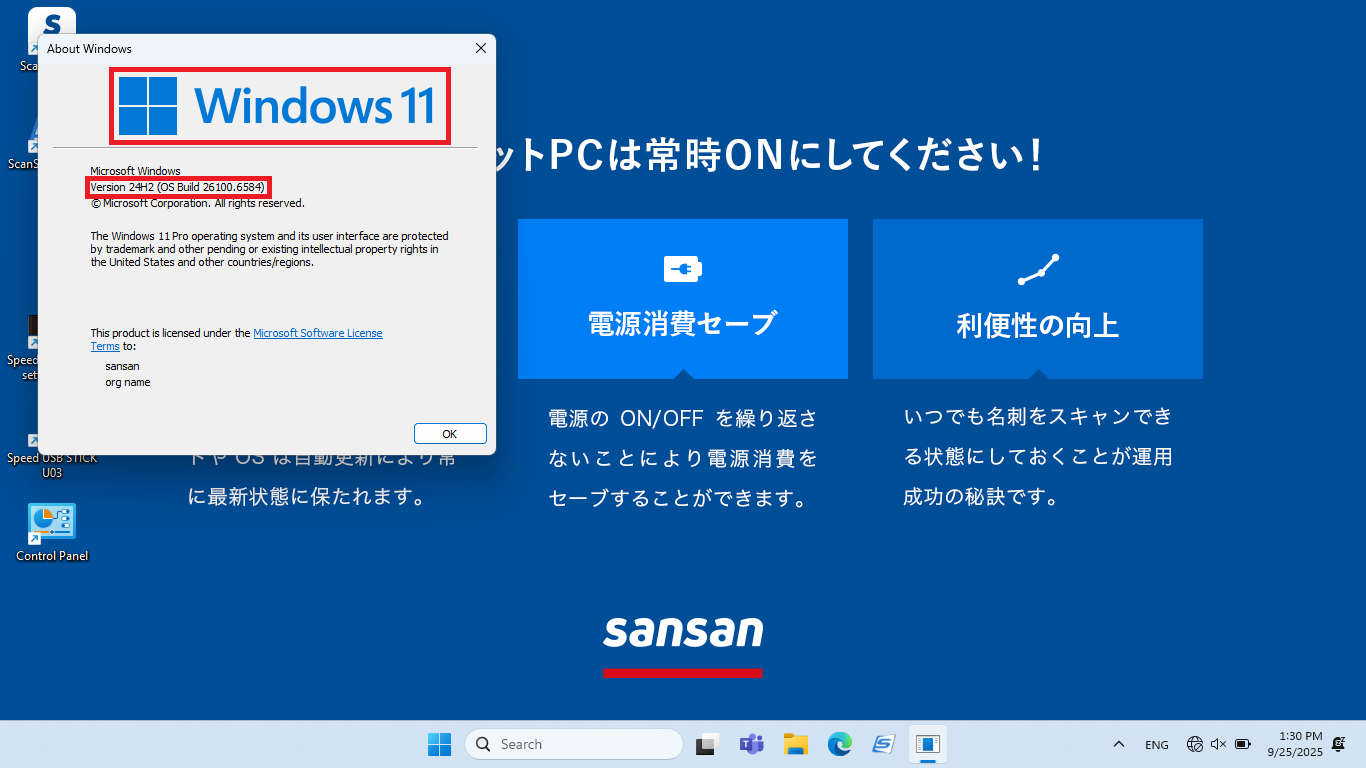
12. After the PC restarts, type "winver" in the taskbar search and tap "Run command". Confirm that it shows "Windows 11 version 24H2". After checking the version, close the window with the × button.
Example:
13. Long-press the Windows icon on the taskbar and when the right-click menu appears, tap "Settings".
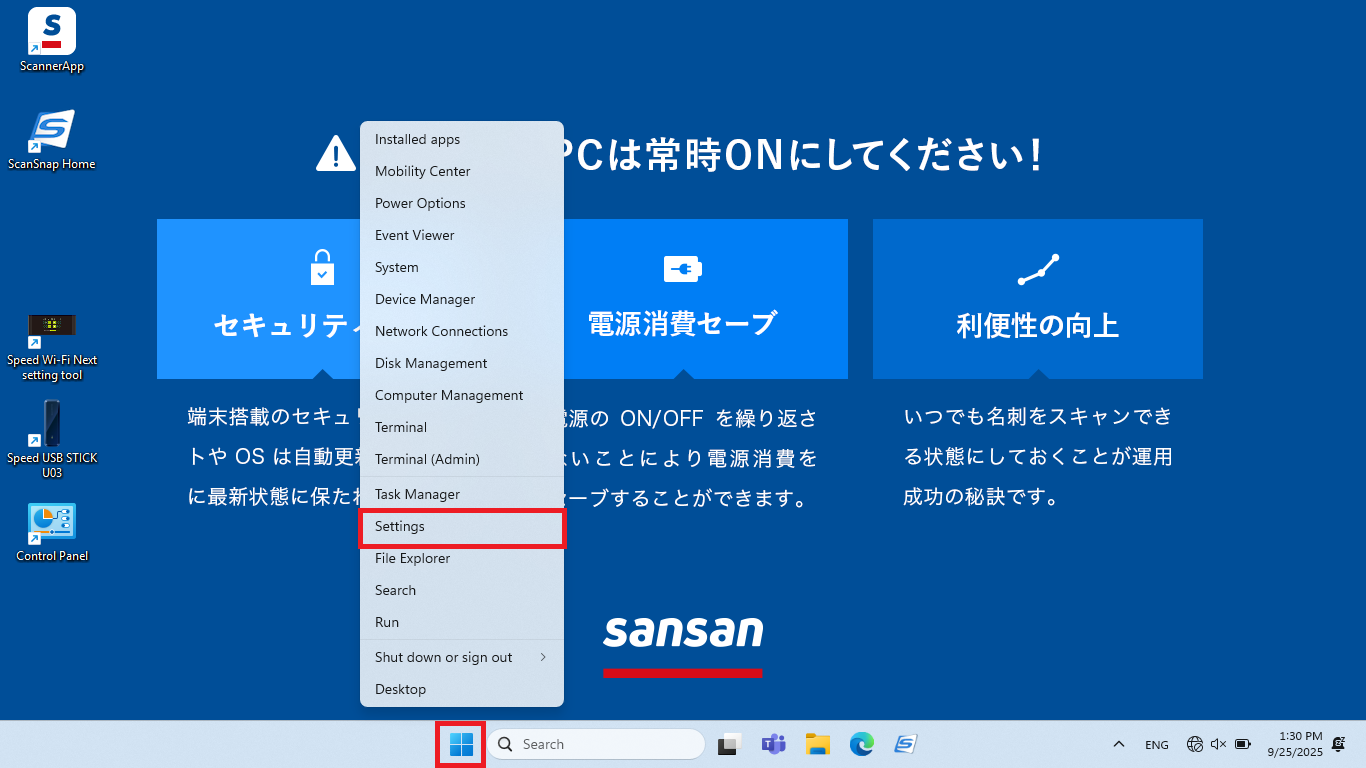
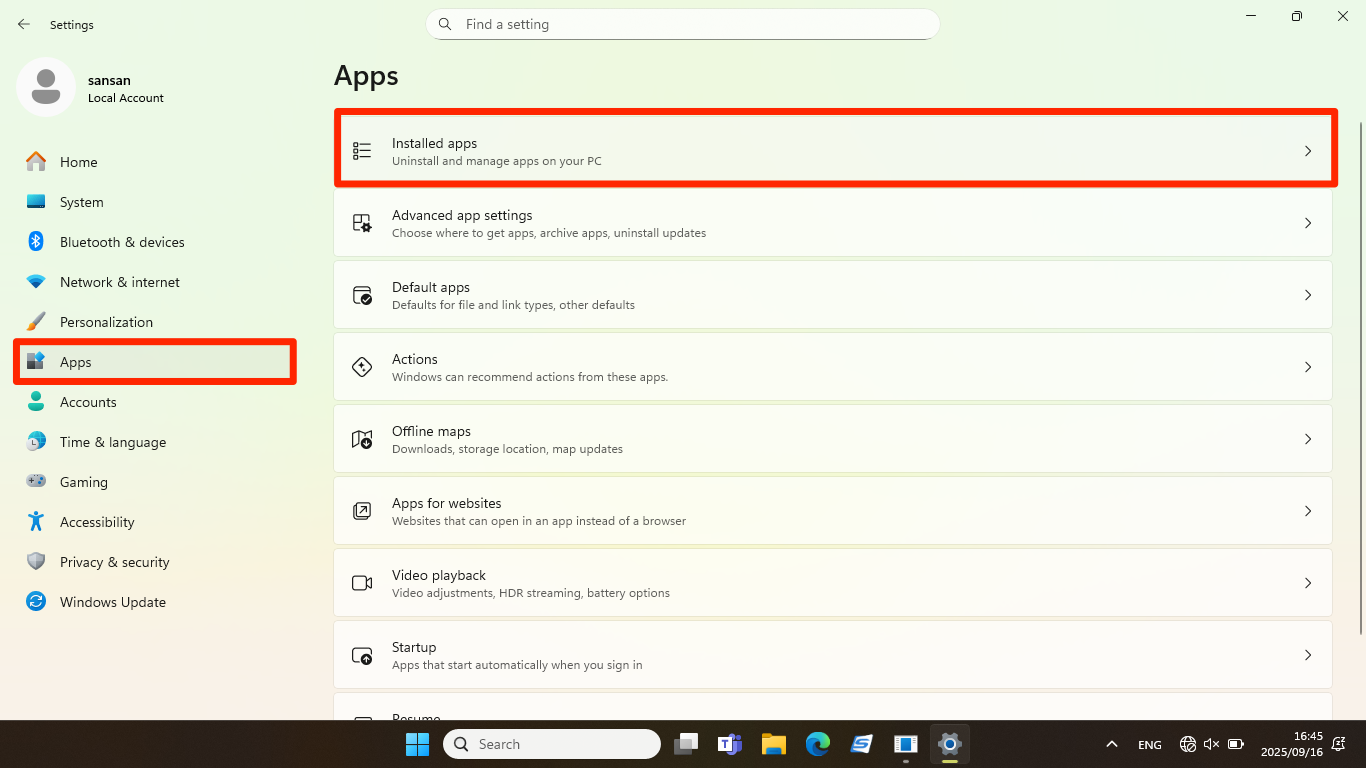
14. Choose [Apps] and Choose [Installed Apps]
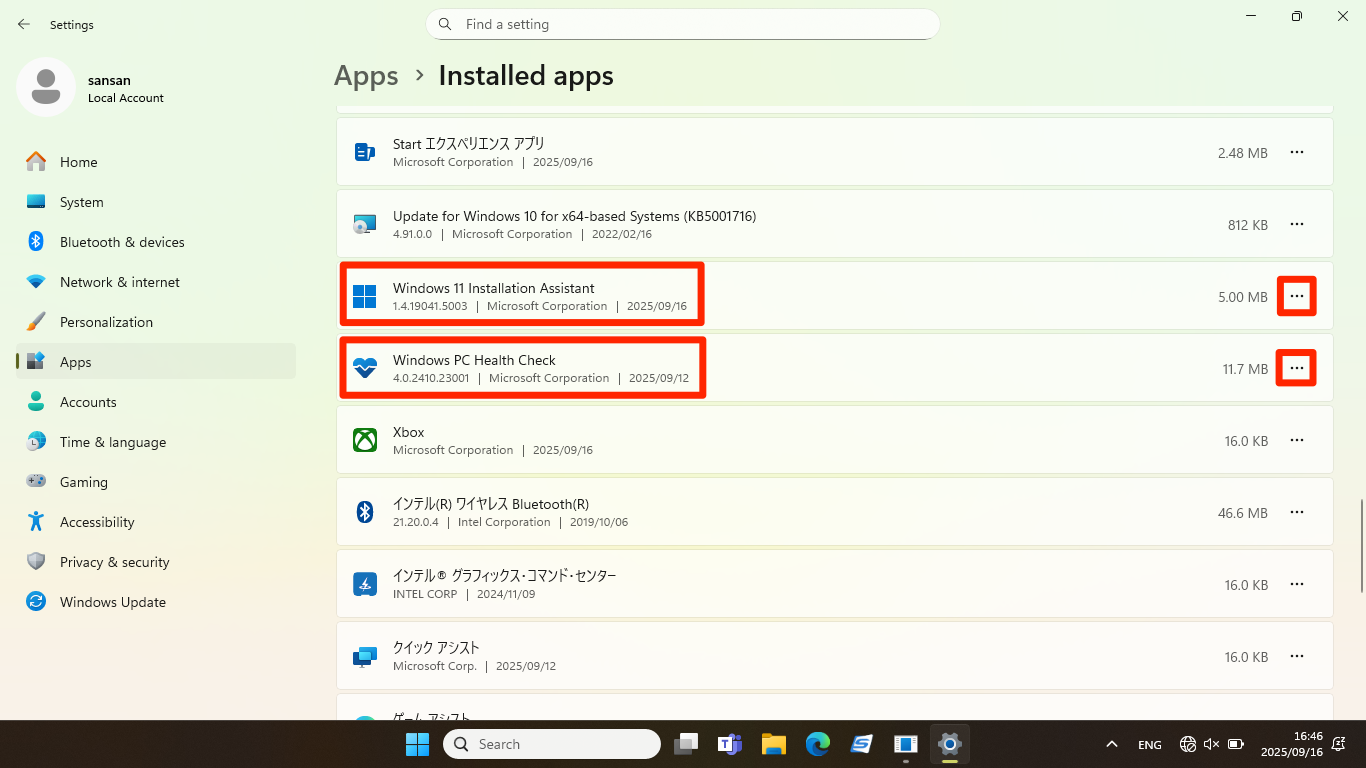
15. On the "Installed Apps" screen, tap the three dots for "Windows 11 Installation Assistant" and for "Windows PC Health Check," then tap "Uninstall."
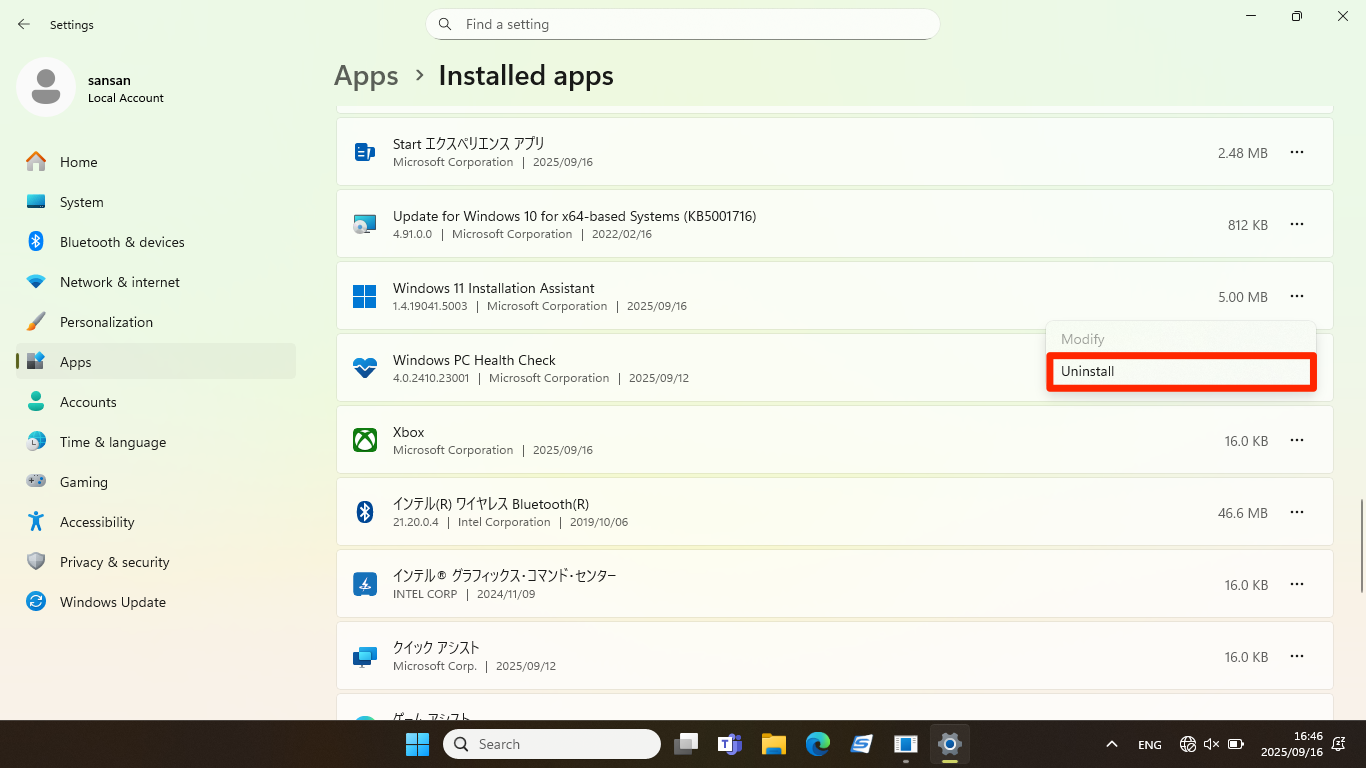
16. After [This app and its related info will be uninstalled.] displays, choose [Uninstall].
17. The [User Account Control] screen will open. In reply to [Do you want to allow this app to make changes to your device?], choose [Yes].
18. Close the settings display when the uninstall screen closes.
19. Changing Your Device’s Settings
1) Download patch.zip here .
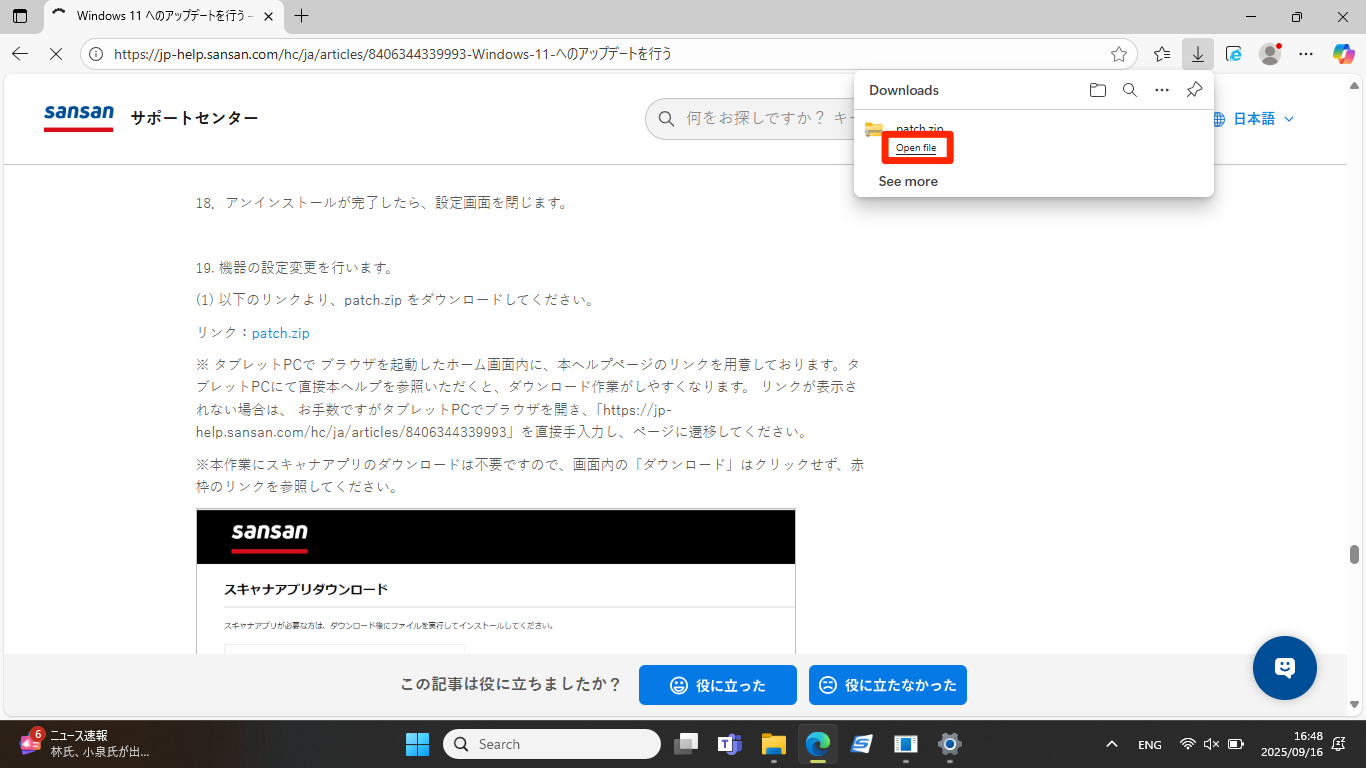
2) When the download is complete, choose [Open file].
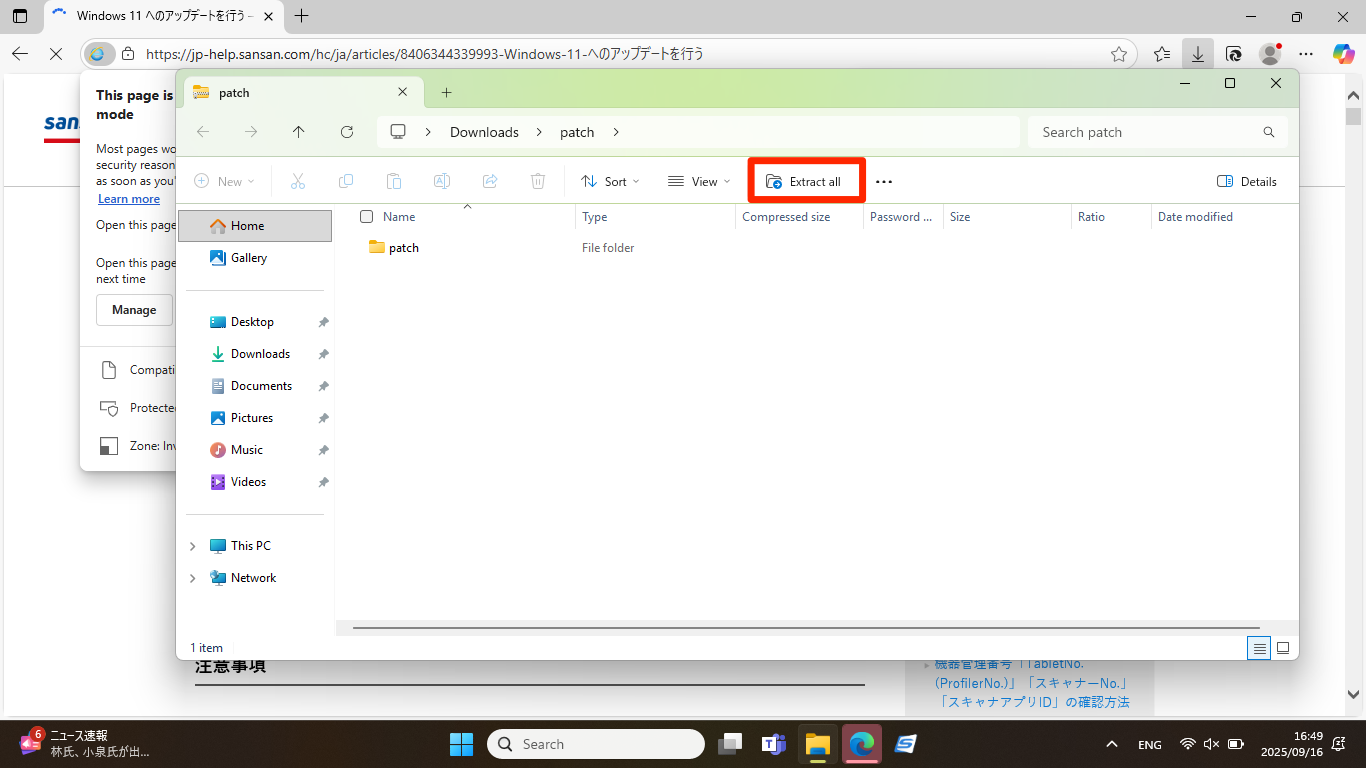
3) Click [Extract all].
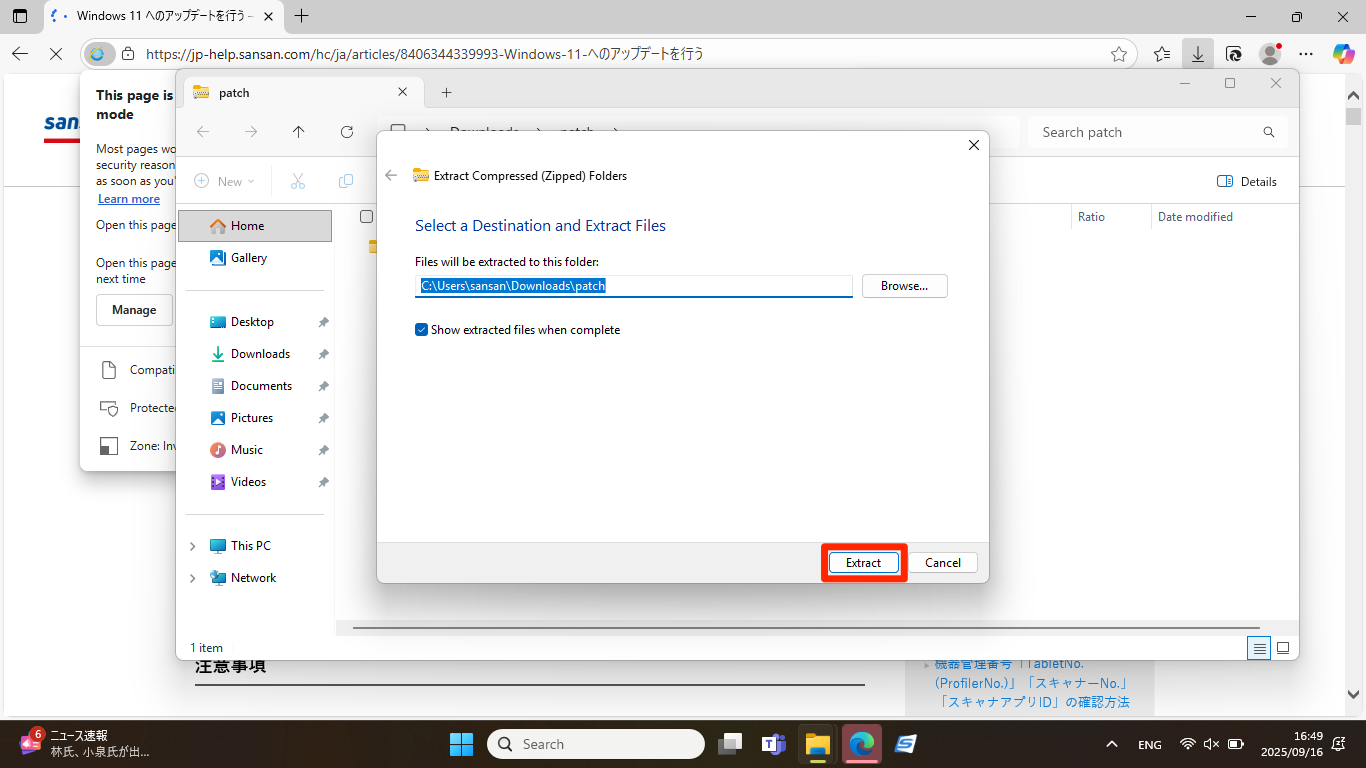
4) On the [Extract Compressed (Zipped) Folders] screen, choose [Extract].
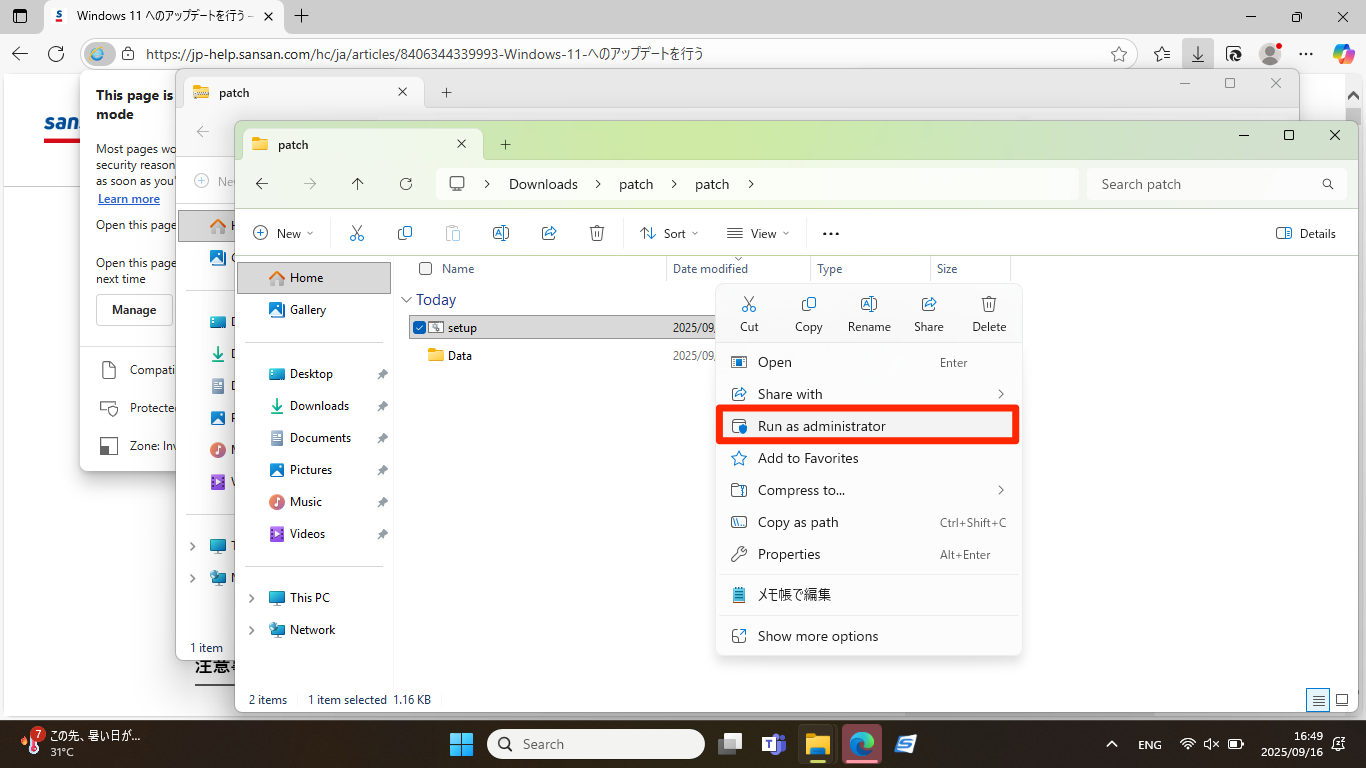
5) Click setup.bat in the patch folder to select it, long press on it, and when the right-click menu is displayed, choose [Run as administrator].
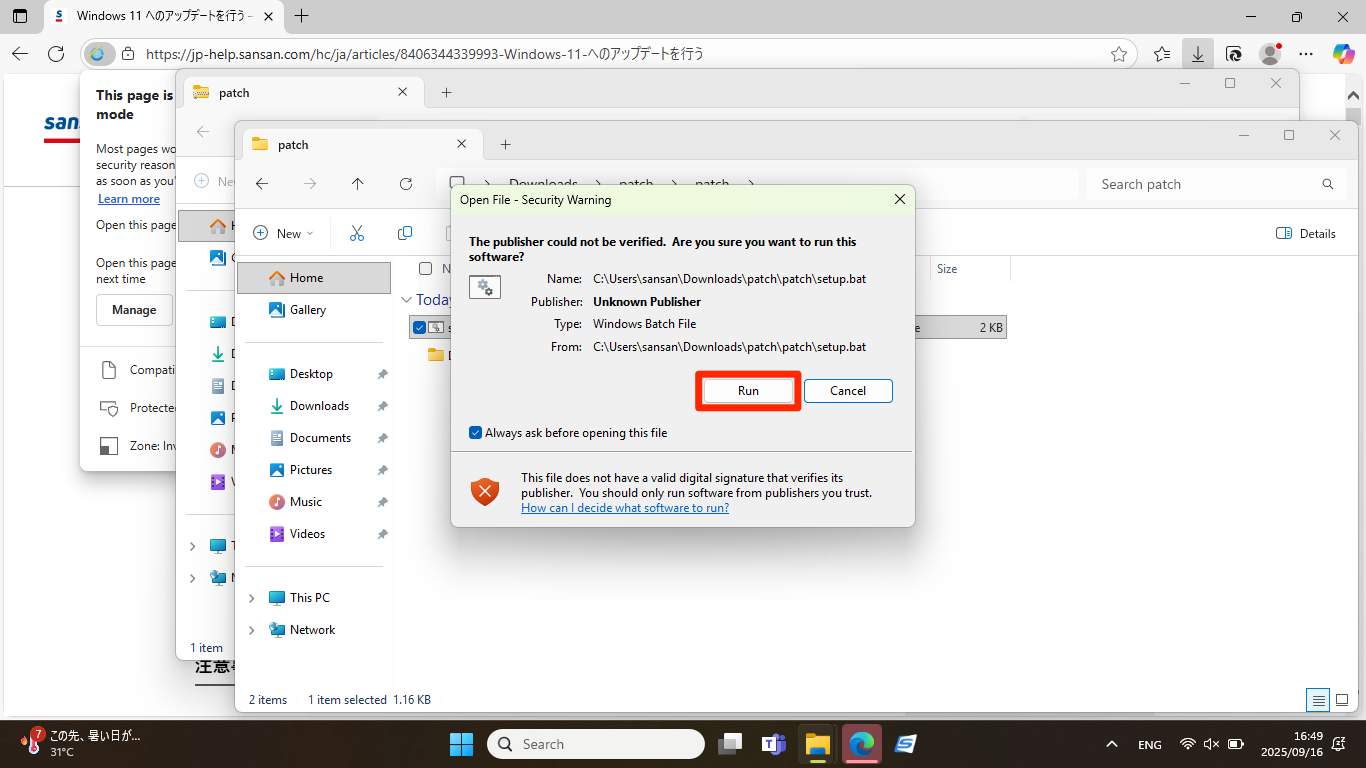
6) When [Open Fie - Security Warning] displays, choose [Run].
7) Select the icon ( ) when it appears in the system tray.
[The User Account Control] screen will open and [Do you want to allow this app to make changes to your device?] will display. Choose [Yes].
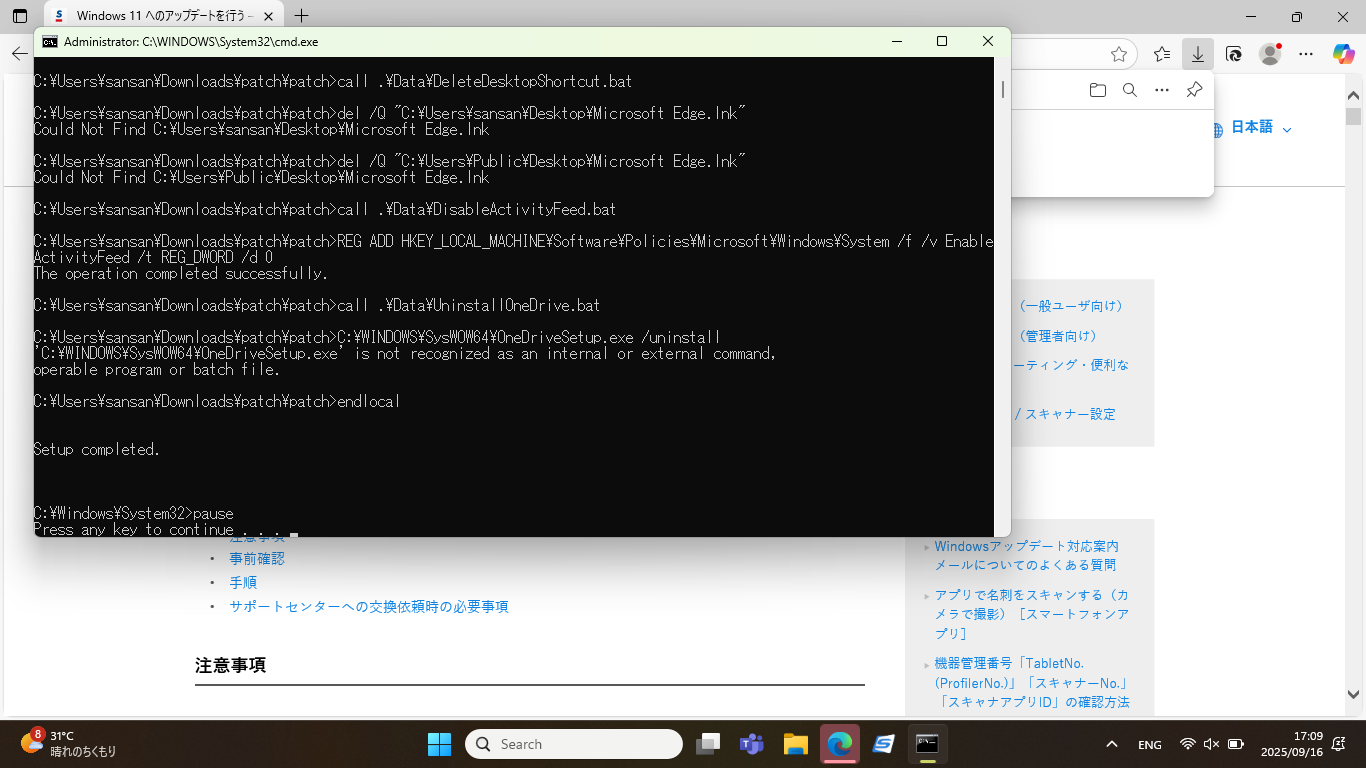
9) The command prompt screen will display. When [Setup completed.] is displayed, close the screen.
20. Finally, reboot the device by touching the Windows icon in the taskbar and choosing [Restart]. Your device is now updated.
