This feature may not be available depending on your plan.
To use this feature, please contact your sales representative or the Support Center.
Overview
Integrating Microsoft 365 Outlook with Sansan lets you use Sansan contact information as Outlook contacts. Updates to contact information will be automatically synced with Outlook.
Requirements
・To use this feature, you need a Microsoft 365 plan that includes Exchange Online and you need to be managing contacts in Exchange Online.
・A Sansan admin must configure the external integration settings, and each user must configure their personal settings.
・Permission from a Microsoft 365 Global Administrator or Privileged Role Administrator is required when a Sansan admin configures the external integration settings.
Integration steps
1. Open the "Integration with other services" page
From the user icon in the top right, go to Settings, then click Microsoft 365 under 3rd Party Integration in the left menu.

2. Integrate with Microsoft 365
Click 'Link' and authenticate Microsoft 365.
Click to integrate/link to open the Microsoft 365 authentication page. Sign in with the Microsoft account you want to use for the Outlook Contacts integration.
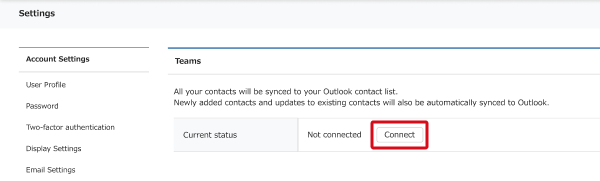
After authenticating, the integration starts and Sansan contacts are synced with Outlook contacts every 30 minutes.
All contacts in My Data are integrated. See here for details about the contact information included in the integration.
Removing the integration
From the user icon in the top right, go to Settings, then click Microsoft 365 under 3rd Party Integration in the left menu.
Click to disconnect the integration.

Frequently asked questions
Q. If you edit your contact info in Outlook, will it be reflected to Sansan?
No.
Q. What happens if you import a contact from Sansan that already exists in Outlook?
When we sync your Sansan contacts to Outlook, we create a folder called 'Sansan' and save contacts in that folder. We wont interfere with any other folders, so your existing contact info will not be updated.
Q. Is there a way to tell in Outlook if contacts were imported from Sansan?
You can tell by checking the 'Sansan' folder.
You can also find out if they are a contact imported from Sansan by checking the personal notes for each contact, as there is a link to Sansan included.
Q.What contact info edited in Sansan will be reflected to Outlook?
When your contact info is updated in Sansan, it will automatically be synced to Outlook too. Your contact info in Outlook will be updated when the following happens
・When you manually edit your card data (anything other than notes and tags)
・When duplicates are combined
・When any card data is updated due to contact updates or colleague updates
Q. Even if you update your contact info in Outlook, will it be overwritten if that same contact info is updated in Sansan?
Yes.
Q. What should you do if you can't link to Outlook because it needs to be approved by an admin?
A. In step 2, if the following page is shown after you click to integrate, the account signed in to Microsoft 365 is not a Global Administrator or Privileged Role Administrator.

By granting access on Microsoft Azure portal
- Sign in to Microsoft Azure portal as a global administrator.
- Go to the Microsoft Entra ID admin page.
- Select 'Enterprise Application'.
- Enter your Application ID or Application Name in the search box, and select the app.
- Select [Permissions] and click [Grant admin consent for “tenant name”].

*Microsoft, Microsoft 365, Microsoft Outlook, Exchange Online, Microsoft Azure portal, and Microsoft Entra ID are registered trademarks or trademarks of Microsoft Corporation in the United States and other countries.