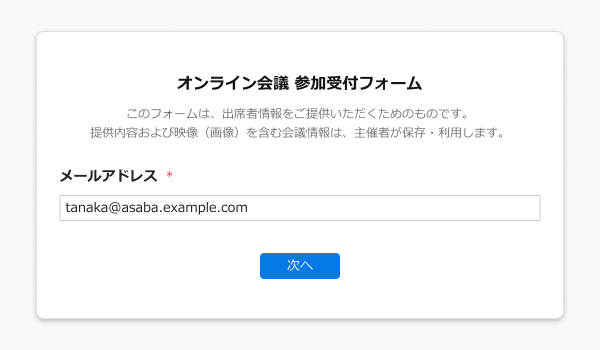
When hosting an online meeting, the organizer can issue a URL for external participants. When an external participant joins via that URL, they can be prompted to enter required information, such as their name and company name, before entering. If a contact is not registered in Sansan, the information entered will be registered as contact data. External participants with a contact already registered in Sansan enter only their email address; no new contact data is registered.
This feature is available for Zoom, Microsoft Teams, and Google Meet.
This feature may not be available depending on your contract. Please contact your sales representative or the Support Center if you'd like to use it.
* Contacts added with this feature will receive Virtual Card emails. See here for details.
* If the user who issued the external participant URL cannot view the contact because it's set to private or because of access privilege settings, Sansan will treat the contact as not registered.
Contents
- Conditions
- Steps to issue URL for external participants
- External participant URL specifications
- Entry form steps
- Company logo on the entry form
- Related pages
Conditions
A system admin must complete the setup before use.
Steps to issue URL for external participants
1. Create an online meeting URL in Zoom, Microsoft Teams, or Google Meet.
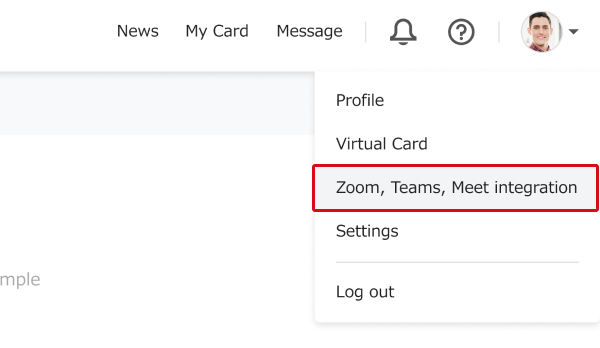
2. In Sansan, click on the user icon in the top right → "Zoom, Teams, Meet integration".
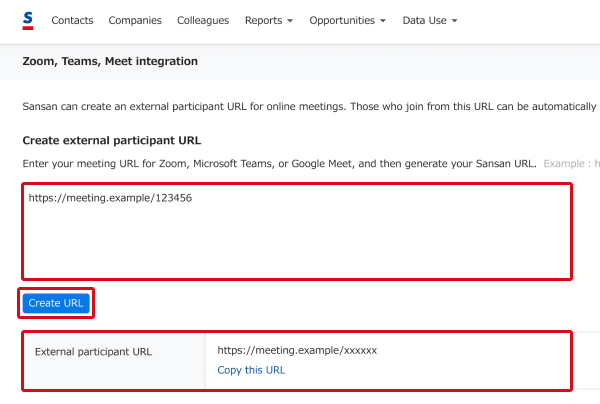
3. Paste the URL created in step 1 into the text box and click "Create URL". Share the URL with external participants via email or another method. When they access that URL, an entry form appears and they're prompted to enter the required information.
* When information is entered for someone whose contact is not registered in Sansan, and contact registration is complete, the digitization quota is used in the same way as scanned cards/contacts. Depending on the contract, additional fees may apply if the quota is exceeded.
See here for checking the digitization quota.
* Organizers and organizer-side participants should join via the online meeting URL created in step 1. Entering the required information via the external participant URL will register a contact and count toward the quota.
External participant URL specifications
Compatible apps
External participant URLs can be issued from online meeting URLs created in the following apps.
- Zoom
- Microsoft Teams
- Google Meet
*Other apps are not supported.
Conditions that invalidate external participant URLs
External participant URLs will be invalidated and the page will not display when accessed if any of the following apply:
- 60 days have passed since issuance
- An admin has deactivated Zoom, Teams, Meet integration
Entry form steps
An entry form appears when an external participant accesses the URL. Enter the email address and click "Next".
* The entry form is shown only in Japanese.
If a contact is not registered in Sansan
Additional information is required. After entering it, click to join and enter the meeting.
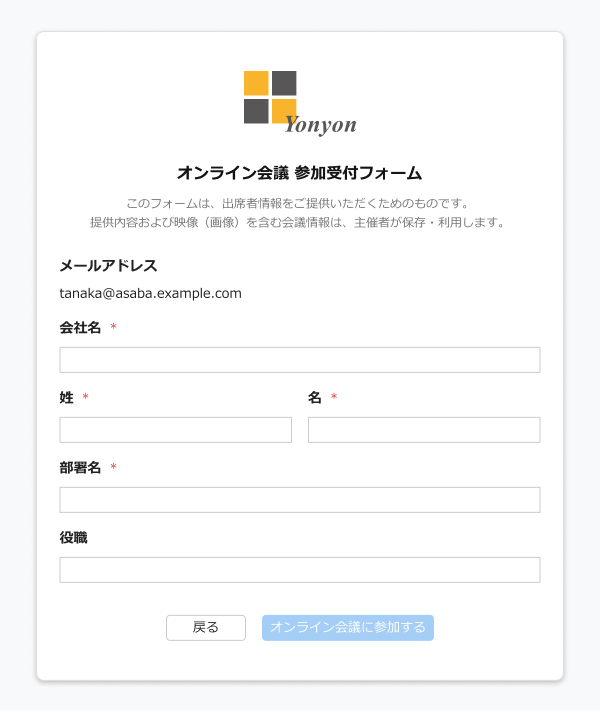
Entry items
<Required>
- Company
- Full name
- Department
<Optional>
- Job title
If a contact is registered in Sansan
No additional information is required. Click to join and enter the meeting.
* In this case, the information is not registered as contact data in Sansan.
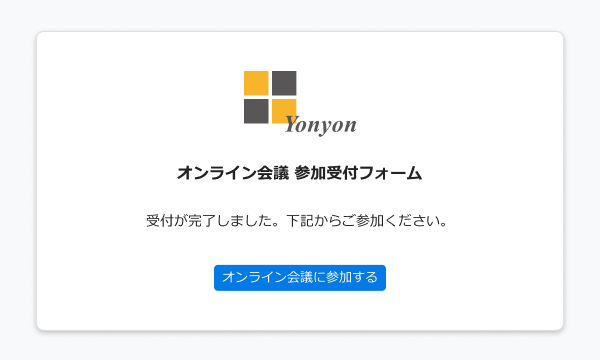
Company logo on the entry form
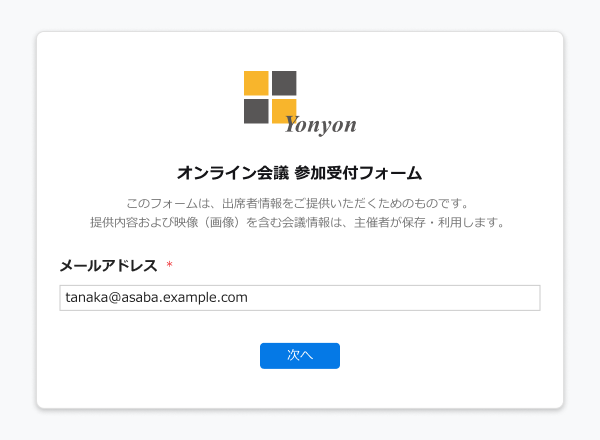
A company logo can be shown on the entry form. Admin privileges are required to set it.
If company logo has been set
If company logo has not been set