When hosting an online meeting, the organizer can issue a URL for external participants. When an external participant joins via that URL, they can be prompted to enter required information, such as their name and company name, before entering. The information input is registered as contact data in Sansan.
This feature is available for Zoom, Microsoft Teams, and Google Meet.
As this is a beta feature, it may be changed or discontinued without notice.
* Contacts added with this feature will receive Virtual Card emails. See here for details.
Contents
- Conditions
- Steps to issue URL for external participants
- External participant URL specifications
- Entry form details
- Related pages
Conditions
A system admin must complete the setup before use.
Steps to issue URL for external participants
1. Create an online meeting URL in Zoom, Microsoft Teams, or Google Meet.
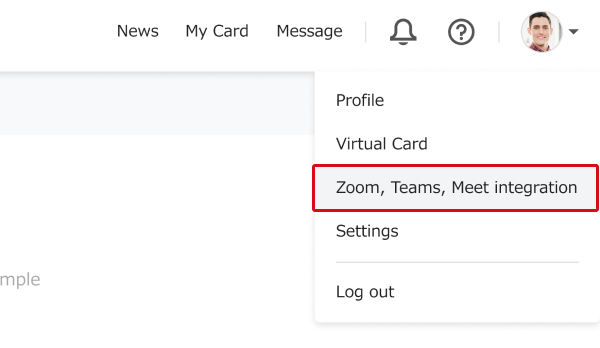
2. In Sansan, click on the user icon in the top right → "Zoom, Teams, Meet integration".
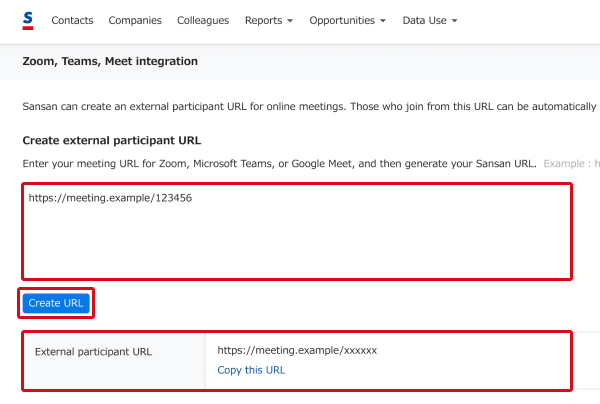
3. Paste the URL created in step 1 into the text box and click "Create URL". Share the URL with external participants via email or another method. When they access that URL, an entry form appears and they're prompted to enter the required information.
* When the required information is entered and contact registration is complete, the digitization quota is used in the same way as scanned cards/contacts. Depending on the contract, additional fees may apply if the quota is exceeded.
See here for checking the digitization quota.
* Organizers and organizer-side participants should join via the online meeting URL created in step 1. Entering the required information via the external participant URL will register a contact and count toward the quota.
External participant URL specifications
Compatible apps
External participant URLs can be issued from online meeting URLs created in the following apps.
- Zoom
- Microsoft Teams
- Google Meet
*Other apps are not supported.
Conditions that invalidate external participant URLs
External participant URLs will be invalidated and the page will not display when accessed if any of the following apply:
- 60 days have passed since issuance
- An admin has deactivated Zoom, Teams, Meet integration
Entry form details
An entry form appears when an external participant accesses the URL. Enter the required fields and click "Join an online meeting" to enter.
Entry items
<Required>
- Company
- Full name
- Department
<Optional>
- Job title