System administrators can configure the data that AI features (including Sansan Labs) can access on the "AI feature data access settings" page.
This feature may not be available depending on your contract plan. Please contact your sales representative or the Support Center if you'd like to use this feature.
This article explains the requirements, available settings, and procedures.
Requirements
Admin privileges are required to use this feature.
What you can configure
In addition to user-entered content, AI features access online information, company information, and contact and report data to summarize information and answer questions.
For contact and report data, you can configure the department and scope that AI features can access. By default, all users can access all contact and report data. Therefore, if you haven't configured access privileges among departments, no changes are required. If you've configured access privileges among departments and want to apply the same privileges to AI features, change the settings.
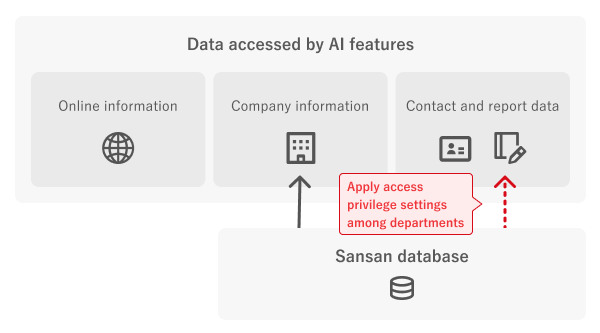
*These settings also apply to Sansan Labs.
*It may take several days for setting changes to take effect.
Steps
These steps are for applying access privileges among departments to the contact and report data accessed by AI features.
- Go to "Admin settings" → "AI feature data access settings".
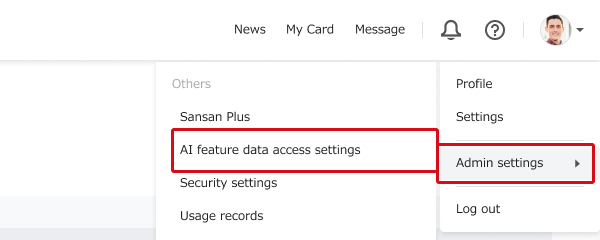
*Depending on your contract plan, "Sansan Labs settings" may be shown under "Admin settings" instead of "AI feature data access settings". If that happens, see this help page.
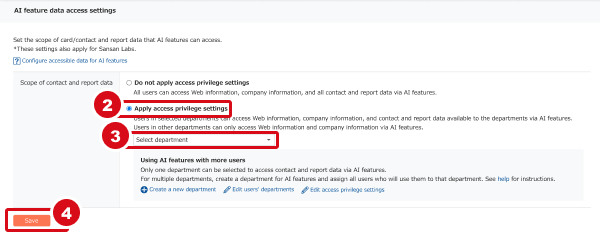
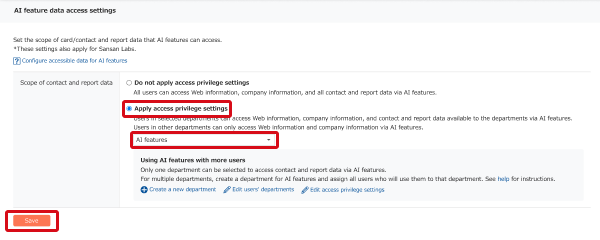
- Select "Apply access privilege settings".
- Select a department whose contacts and reports you want AI features to access. Each user can access the following data through AI features.
- Users in the selected department: Online information, company information, and contact and report data available to the selected department
- Users in other departments: Online information and company information
- Click "Save."
To use AI features with more users
Only one department can be selected to access contact and report data through AI features. To use AI features in multiple departments, create a department for AI features and assign all intended users to that additional department.
Example:
If only full-time employees should be able to access contact and report data other than those of executives and the investment department through AI features.
- Assign to the AI features department as an additional department: Full-time employees
- Access privilege pattern for the AI features department: Access permitted for all departments except executives and the investment department
Step 1. Create a new department for AI features
- Click "Create a new department".
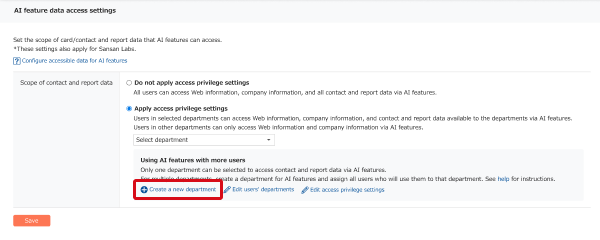
- On the "Manage Departments" page, click "Add" next to "All".

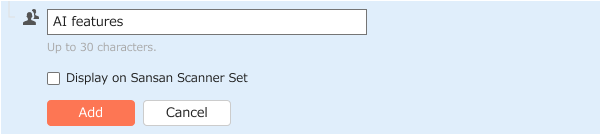
- Enter the department name and click "Add". e.g., AI features
Step 2. Assign all users to the AI features department as an additional department
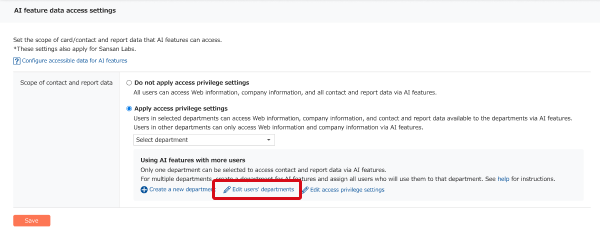
- Return to the "AI feature data access settings" page and click "Edit user departments".
- On the "Manage Users" page, assign all intended AI features users to the additional AI features department.
For details, see the following help pages:
Manual setup: Changing user information (giving permissions)
File import: Bulk adding, changing, or deleting users from a file
Step 3. Use access privilege patterns to specify the scope of contact and report data to access
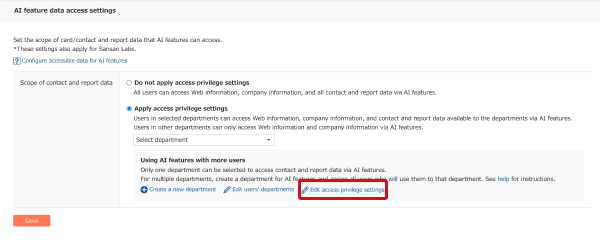
- Return to the "AI feature data access settings" page and click "Edit access privilege settings".
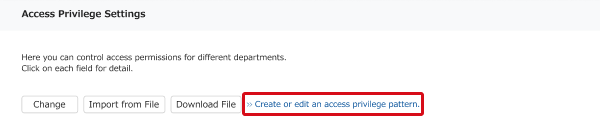
- On the "Access Privilege Settings" page and click "Add or edit an access privilege pattern".*If you're using an existing pattern, skip to step 6.
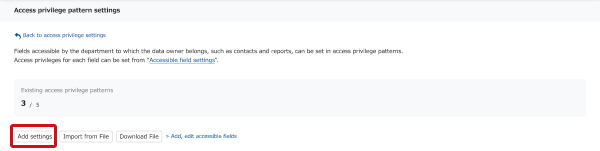
- On the "Access privilege pattern settings" page, click "Add settings".
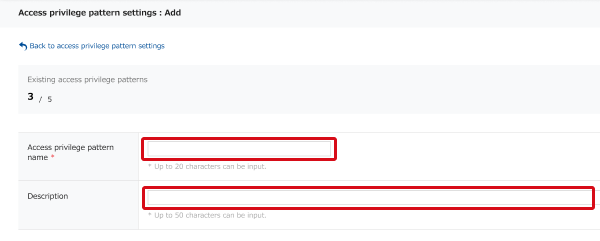
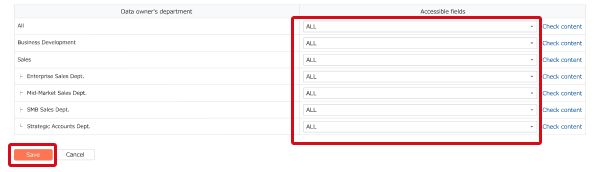
- On the "Access privilege pattern settings: Add" page, enter the name and description, set the scope you want AI features to access, then click "Save".
- Click "Back to access privilege settings".

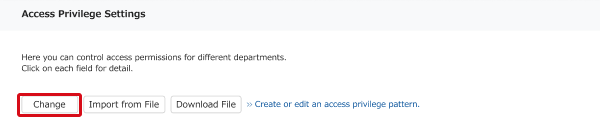
- On the "Access Privilege Settings" page, click "Change," select the access privilege pattern for the AI features department, then click "Save".
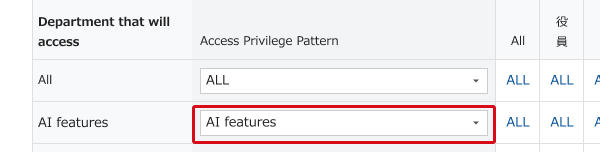

Step 4. Select the AI features department on the "AI feature data access settings" page
Return to "AI feature data access settings". Select "Apply access privilege settings", select the AI features department, then click "Save".
Additional information
Scope of contact and report data accessed by AI features
Only data that meets the following conditions is accessed.
*If access privileges among departments are applied, the scope is further restricted based on the user's department.
| Data | Type | Conditions for data to be accessed |
|---|---|---|
| Contact | -- | Not set to private |
| Report | Meeting Meeting (visit) Meeting (visitor) |
Not set to private |
| Online meeting | Not set to private | |
| Phone Phone (outgoing), Phone (incoming) |
Notes have been entered, not set to private | |
| Email Email (sent) Email (received) |
Notes have been entered, not set to private | |
| Contact exchanges | Not accessed |
When a user belongs to multiple departments
If a user belongs to multiple departments and one is selected on the "AI feature data access settings" page, the following occurs.
- Contacts/reports accessible to both the selected and unselected departments: Accessible
- Contacts/reports accessible only to the selected department: Accessible
- Contacts/reports accessible only to unselected departments: Not accessible
When a user belongs to a department that does not access contact and report data
If a user belongs to a department that does not access contact and report data and uses the AI Search summary feature, the behavior is as follows.
If a user belongs to a department that does not access contact and report data and uses the AI Search summary feature, the behavior is as follows.
- When opening from company master: AI Search summarizes based on online information and company information using the company name shown in company master.
- When opening from person details: AI Search summarizes based on online information and company information using the company name and person name shown in Person details.
Related pages
Changing access privileges among departments (access control)